


How to make a deposit in Bybit and win up to $1000 in BTC

Looking for a guide on how to deposit funds on Bybit? We hear you! Here’s a detailed operation process so that you can easily make a deposit by transferring cryptocurrency from your external wallet, or purchasing fiat currency to deposit to your Bybit account.
Key Takeaways:
You can choose to either transfer your existing funds from an external wallet to your Bybit account, or deposit fiat currency to your Bybit account to purchase crypto.
There are various ways you can purchase crypto on Bybit, such as buying via credit/debit card payment, buying via third-party payment methods, using Fiat Deposit or via P2P Trading.
- For new users, go to Rewards Hub and deposit at least 100 USDT to get a chance at the lucky draw, with up to $1000 in BTC rewards up for grabs.
Funding your Bybit account: Depositing crypto on Bybit
Before you can fund your Bybit account, you first need to create a Bybit account and complete your Identity Verification (KYC). If you don’t already have one, please click on our step-by-step guide to creating a Bybit account here. Once your KYC is complete, you can instantly earn 20 USDT for trading. After you’ve done that, we can explore the different ways you can fund your Bybit account.
If you already have funds in an external crypto wallet or on another exchange, you can choose to deposit crypto into your Bybit account through a blockchain transaction. However, you should be aware of the following:
Please only deposit the supported coins using the supported chain listed on the Bybit Asset page.
Bybit currently only supports direct transfer. Please do not transfer your assets using the Smart Contract method.
For coin deposits that require a deposit tag/memo, kindly be sure to fill in your deposit memo/tag correctly. You can find your memo/tag from the deposit window. Depositing without a memo/tag or with the wrong memo/tag may lead to the loss of assets. For more information, please refer to the Bybit Deposit FAQ.
Depositing crypto on the Bybit App
You can deposit crypto into your trading account using the Bybit App mobile application. If you don’t yet have the App, first download it from the Bybit website, App Store or Google Play and install it on your mobile device. The Bybit App allows you to access all the main trading products and services on Bybit, just as with the desktop version.
After installing the App and logging in, follow the steps below to deposit crypto:
Step 1: On your starting screen, you’ll see Deposit Now prominently displayed on a yellow button. Click on that to proceed.
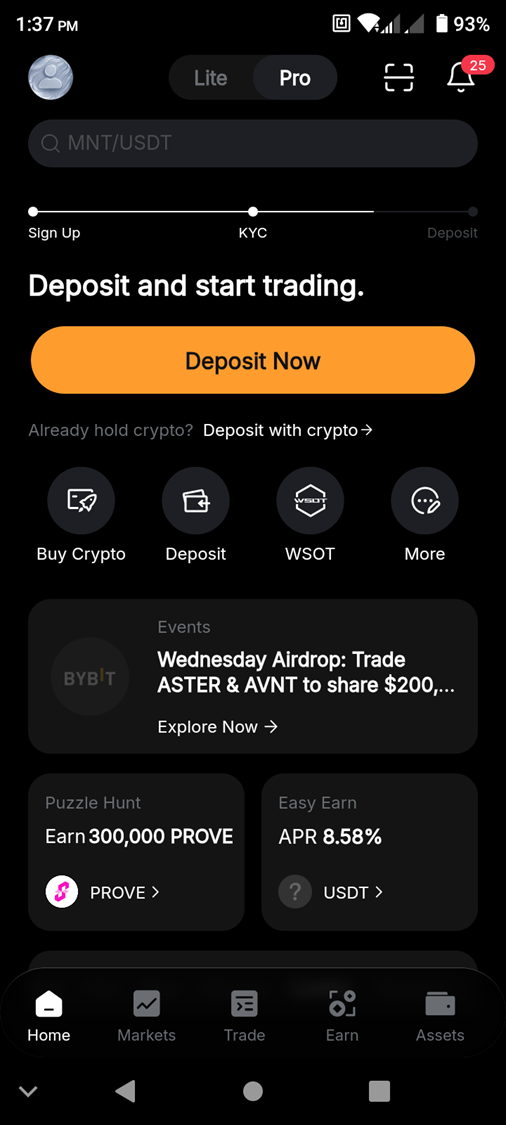
Step 2: From the list of deposit options, choose Deposit Crypto.
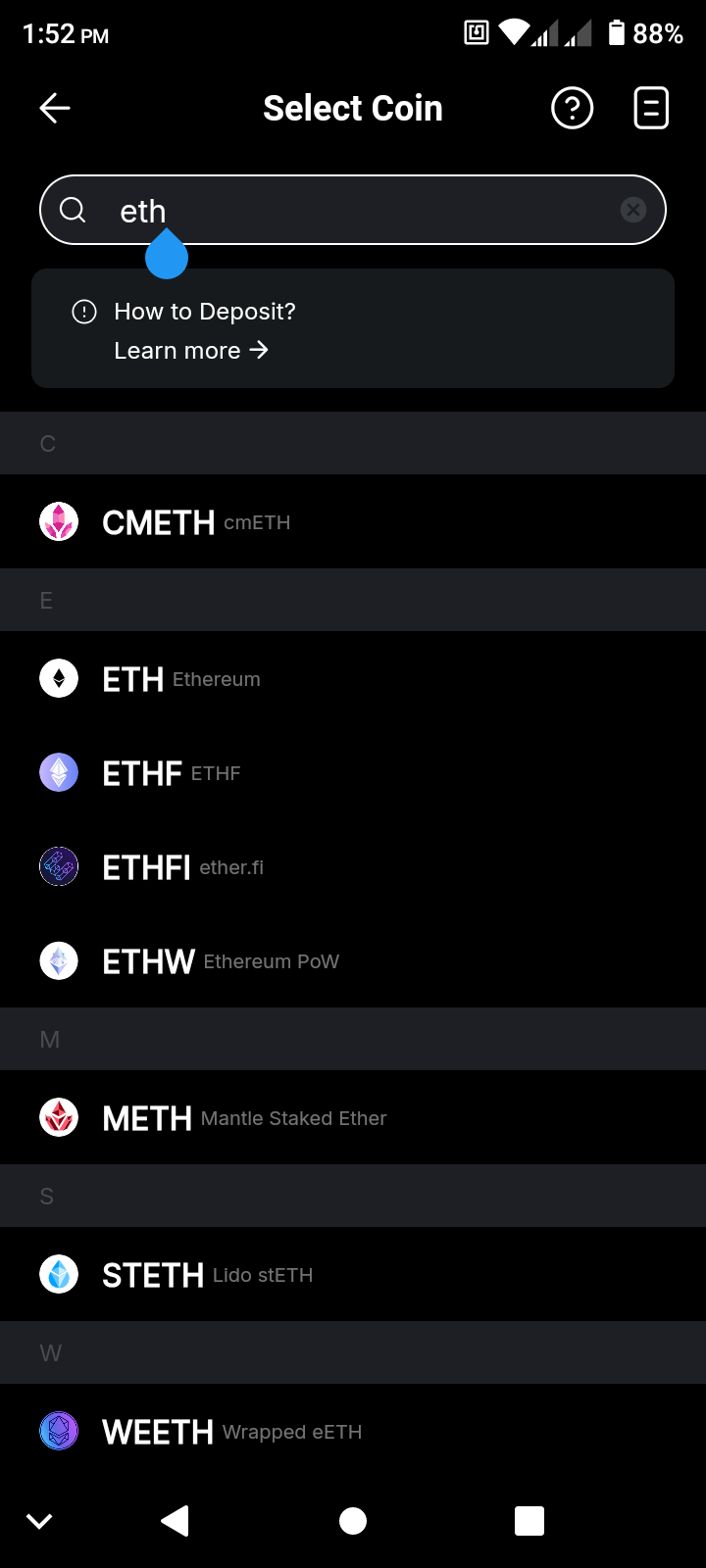
Step 3: In the Select Coin screen, type in the name of the cryptocurrency you’d like to deposit or, alternatively, select it from the extensive list of cryptos in the menu.
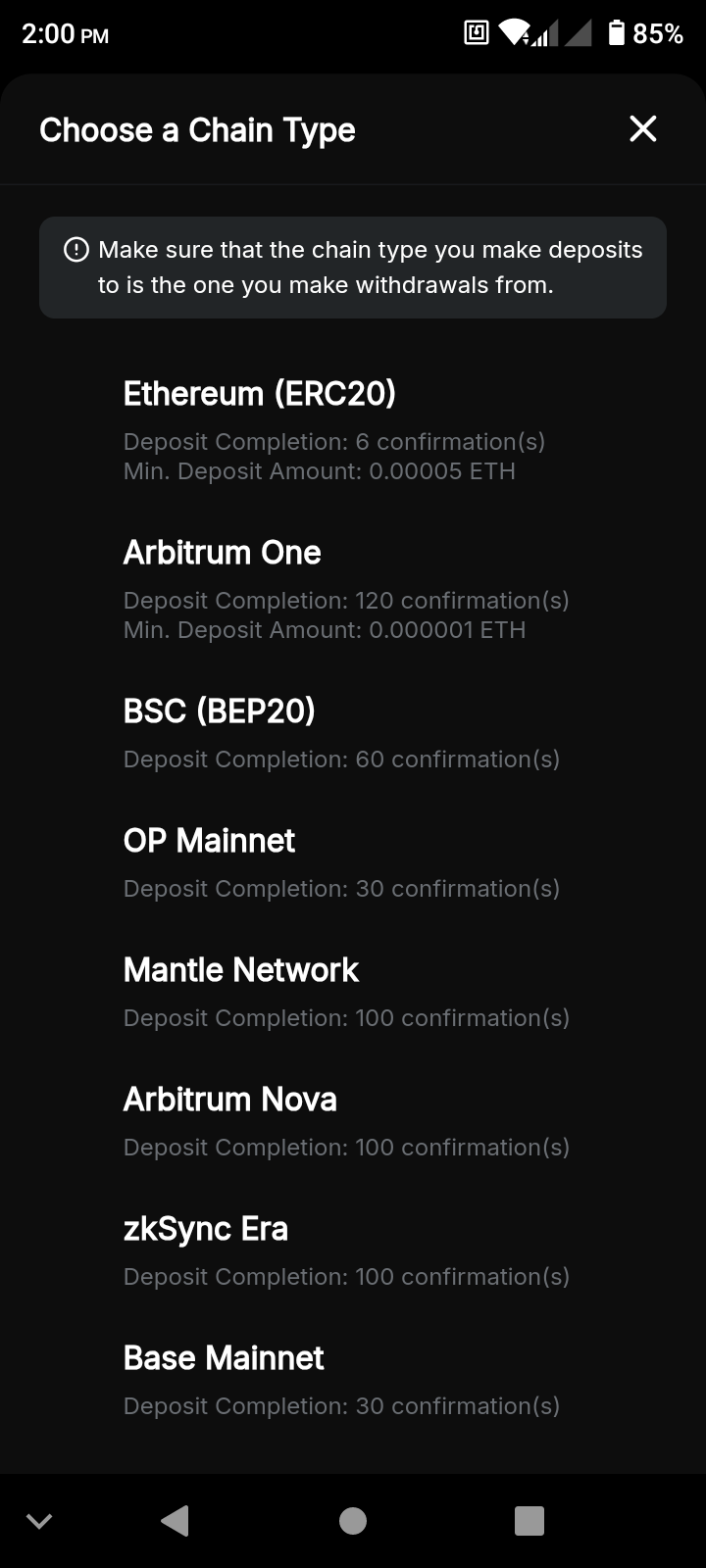
Step 4: Choose the chain from which you’re making your deposit. If you’ve selected a coin available on multiple blockchains (for example, ETH), you’ll see the complete list of supported networks for that asset.
Step 5: You’ll see a screen with a QR code and a wallet address. Scan the QR code or enter the destination address in your decentralized wallet to send funds.
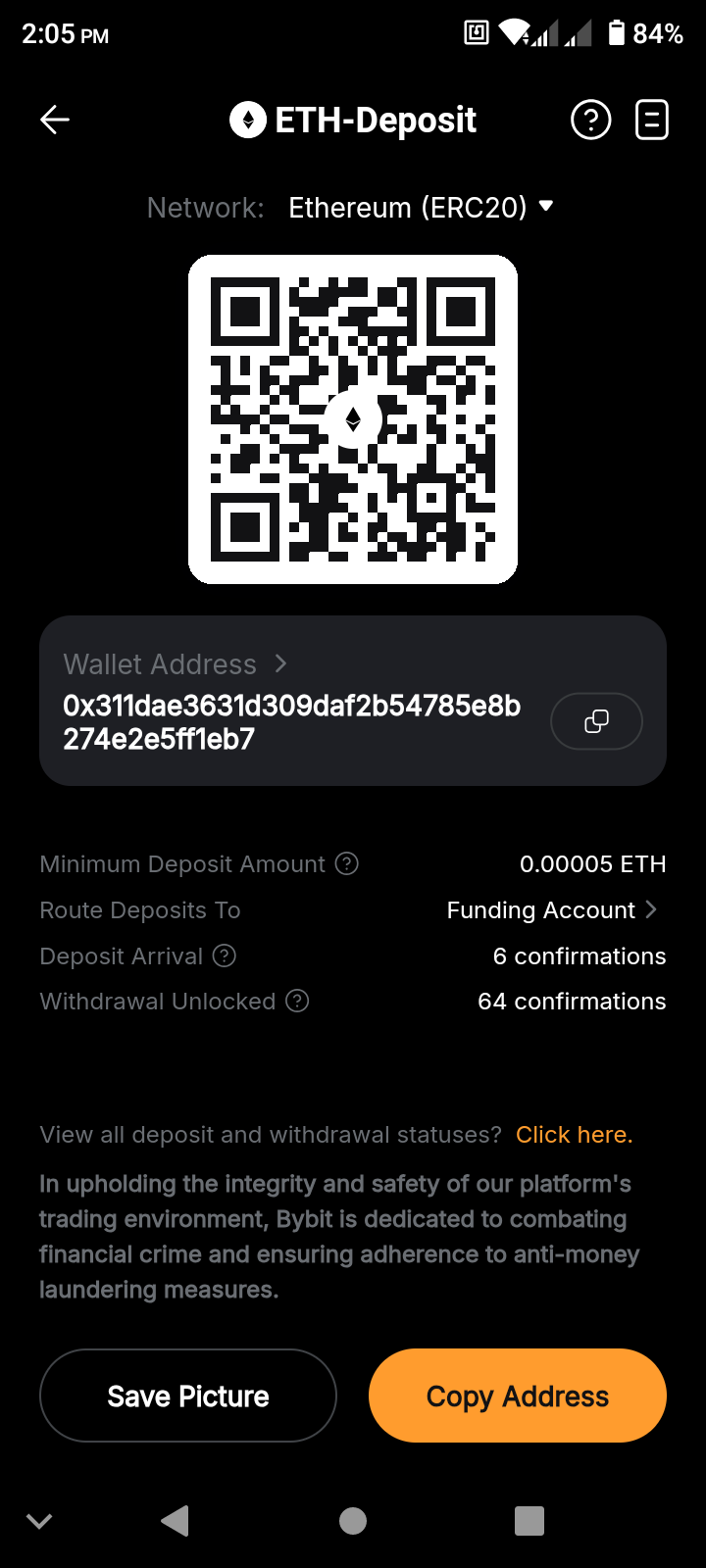
On the above screen, you’ll also see the number of confirmations on the blockchain that are required in order for your funds to be credited to your account. This should give you some indication of the time it will take for the crypto to become available in your Bybit account. Normally, depending upon the network, this should take anywhere from a few seconds to a few minutes.
Depositing crypto on Bybit Web
To deposit crypto funds into your Bybit account using the desktop version, follow the below steps:
Step 1: Go to Bybit’s homepage. If you have an account, you should automatically be logged in. On the homepage, click on the Deposit button in the top right of the screen.
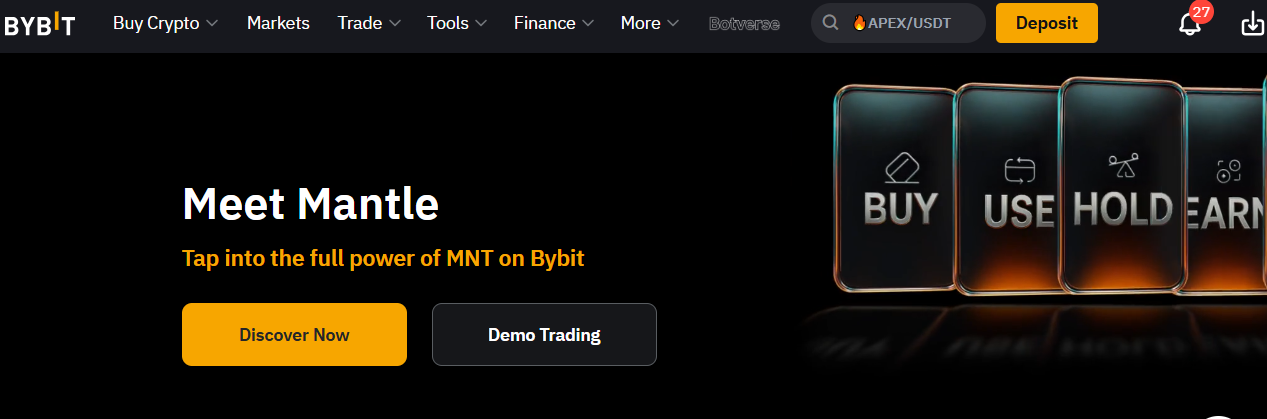
Step 2: You’ll be taken to the crypto deposit page by default. Choose your coin from the drop-down menu, or type its ticker and select the chain.
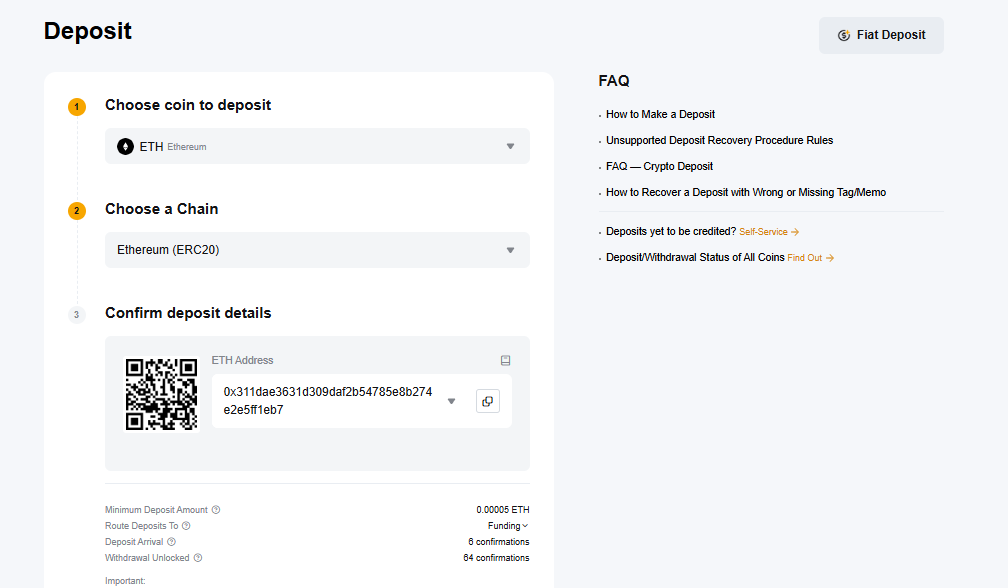
Step 3: The QR code and the destination wallet address will be shown on the same screen. Scan the QR code or enter the destination address in your decentralized wallet to transfer the funds.
Funding your Bybit account with crypto
Don’t have any funds in your external crypto wallet? Fret not, because you can easily purchase crypto on Bybit using the following channels.
Buying crypto with credit/debit card payment
Step 1: After you’ve logged into your Bybit account, hover your cursor over the Buy Crypto tab on the top left corner of the Bybit homepage and click on One-Click Buy.

Step 2: Click on Add Card and input your credit/debit card information.
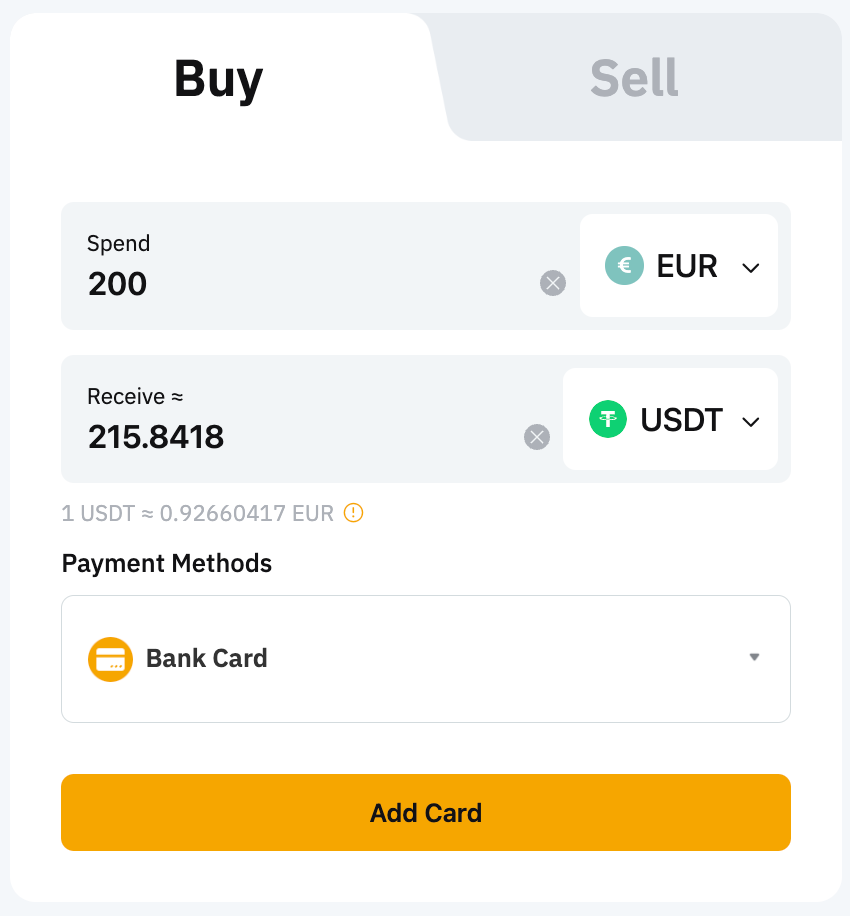
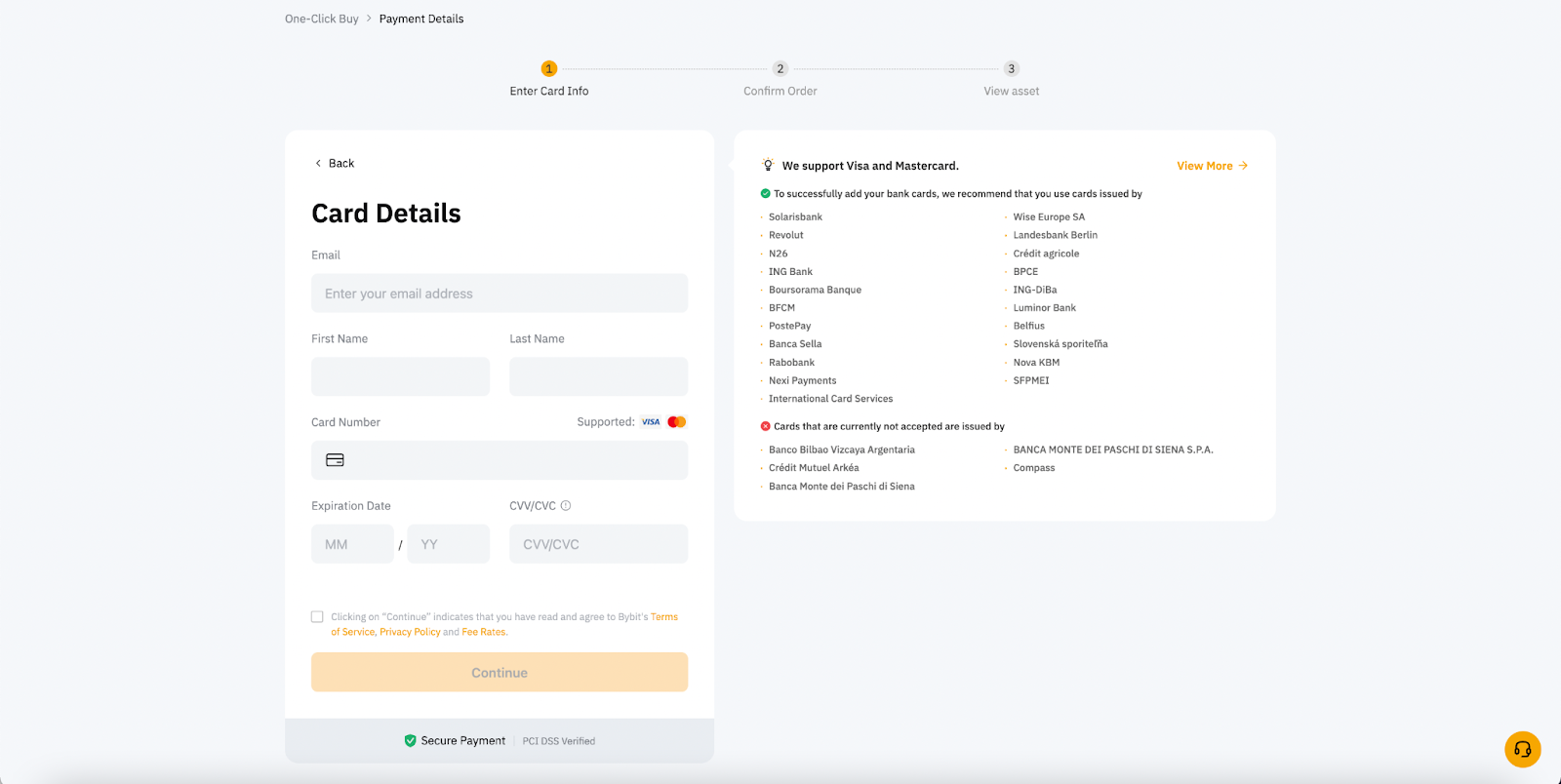
Step 3: After you’ve added your credit/debit card, select the fiat currency that you would like to pay with. Then, select the coin that you would like to receive.
Step 4: Input the amount that you would like to purchase and select the credit/debit card you’ve added. Then, click on Buy With.
Step 5: You’ll be asked to verify your purchase. If the details are correct, you may proceed to click on Confirm.
Step 6: The card payment will be processed and you may be prompted to key in a one-time password or confirm the transaction from your bank app.
Step 7: Once the transaction is completed, you can click on View Asset to check your balance.
Buying crypto with third-party payment
The third-party payment method follows most of the similar steps for the bank card option (shown above). However, the difference is that with the third-party payment method, you can select not only a debit or credit card but also a wide range of alternative payment processors, including Google Pay, Apple Pay, Banxa, MoonPay, Mercuryo and a variety of region-specific options.
Step 1: After you’ve logged into your Bybit account, hover your cursor over the Buy Crypto tab on the top-left corner of the Bybit homepage and click on One-Click Buy.
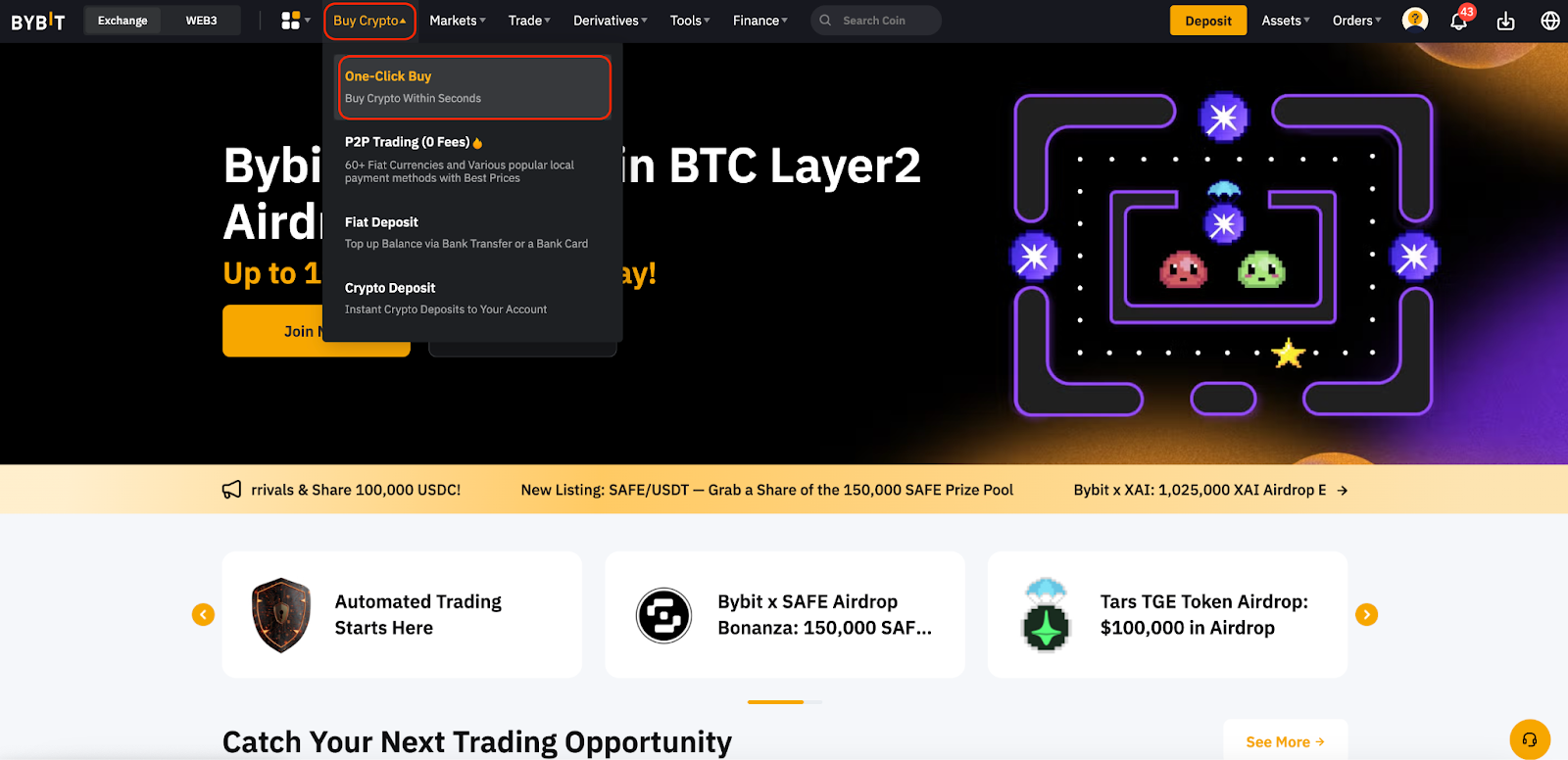
Step 2: Click on the drop-down menu and select any of the available third-party service providers.
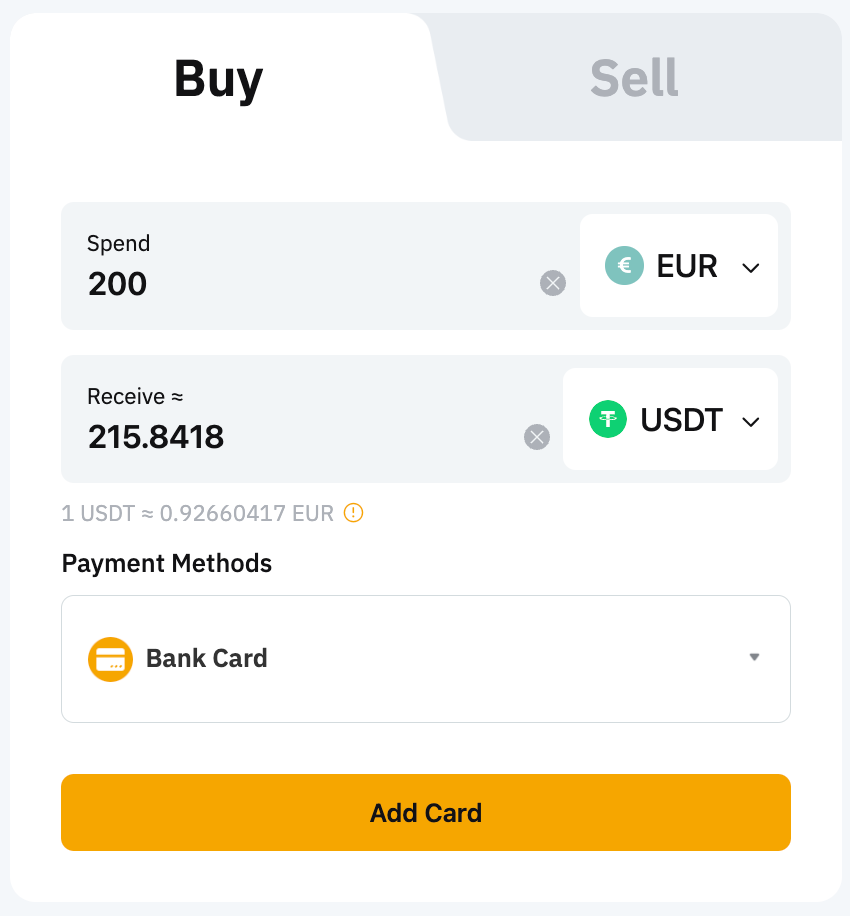
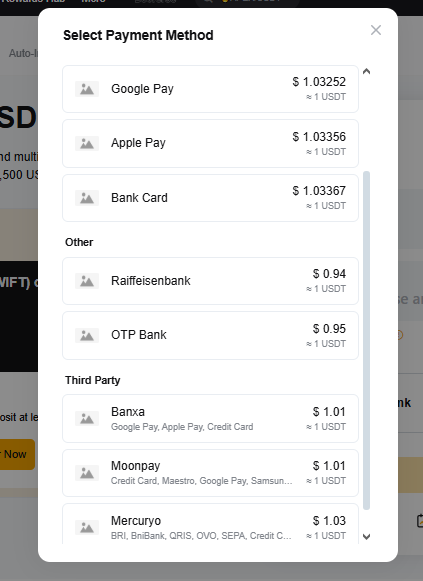
Step 3: After you’ve chosen your third-party service provider, input the amount that you would like to purchase and select the coin you would like to receive. Then, click on Buy With. Select the coin that you would like to receive.
Step 4: Choose your payment channel and verify your purchase. If the details are correct, you may proceed to click on Continue.
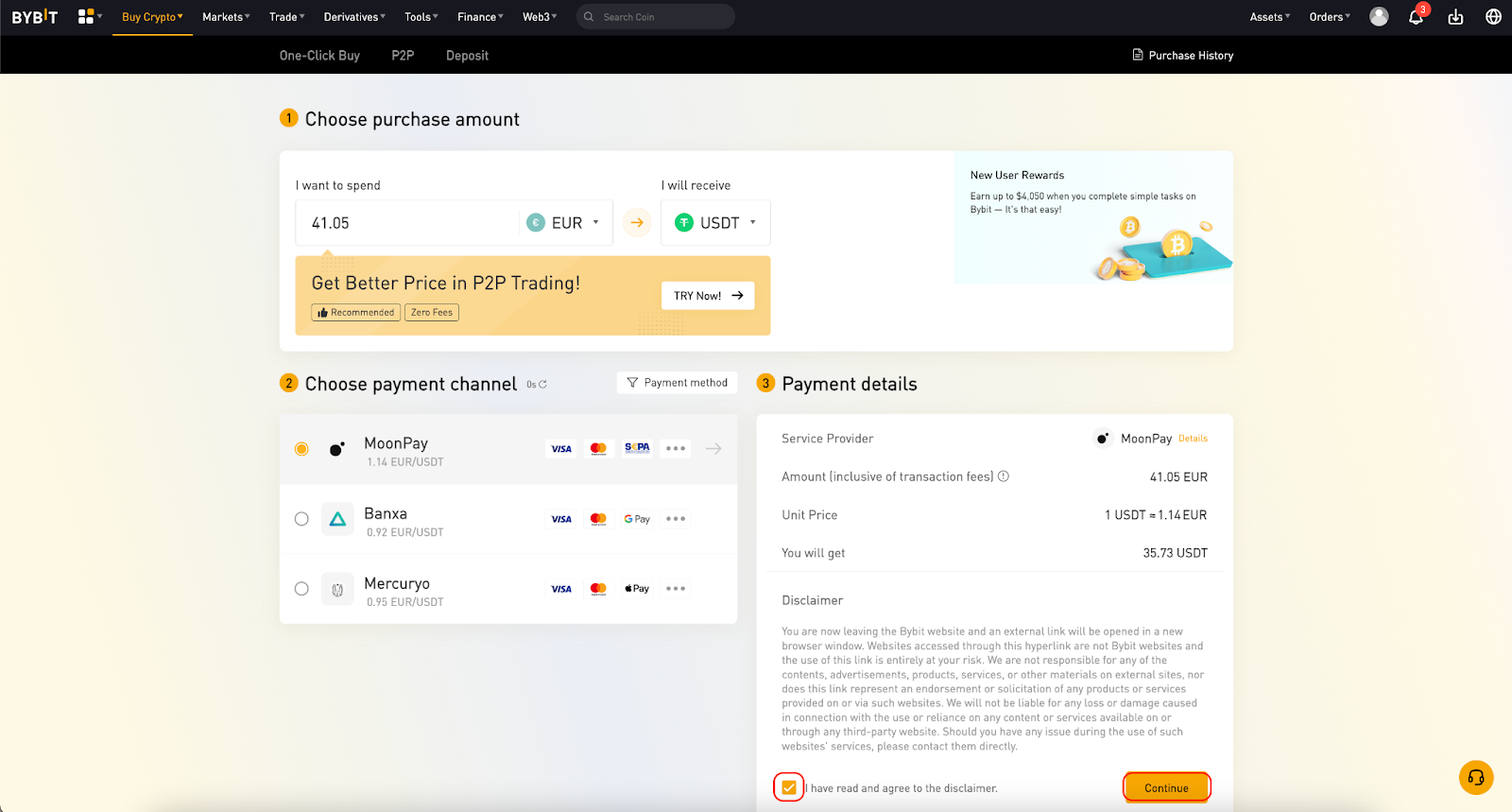
Step 5: You’ll be redirected to the third-party website to continue the purchase process.
Step 6: Once the transaction is completed, you can click on View Asset to check your balance.
Buying crypto with the Convert function
You can fund your Bybit account with the easy-to-use Convert function as well. Convert lets you purchase crypto with just a few clicks, and there are no trading fees. Both Instant orders and Limit orders are supported. Using Instant orders, you can buy crypto via your Funding Account or Unified Trading Account (UTA), while Limit order purchases are available only through the Funding Account. To buy crypto using Convert, follow the steps below:
Step 1: Go to Bybit’s homepage. If you have an account, you should automatically be logged in. On the homepage, hover over the Buy Crypto top menu item and select Convert.
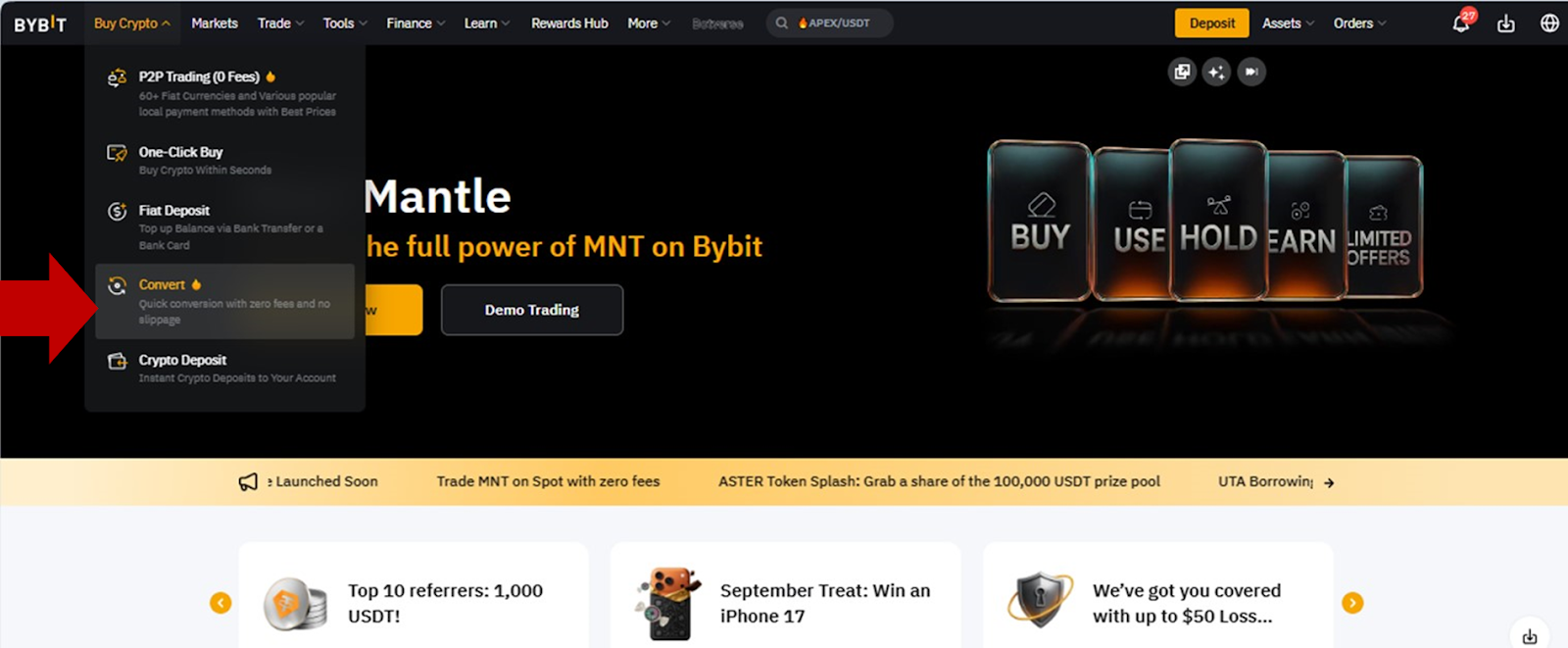
Step 2: Select the following options:
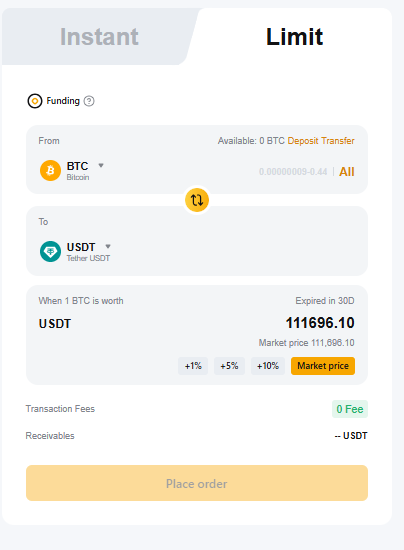
Your preferred order type (Instant or Limit)t
The account that you’d like to use for conversion (Funding or UTA for Instant; Funding is set as the only option for Limit)
The coin you’d like to sell
The coin you’d like to buy
The transaction amount (you may also choose All to convert the entire amount available in that account).
For a Limit order, also specify the target price at which your transaction is to be executed for the coin sold.
After specifying the details, click on Get a Quote (for Instant orders) or Place Order (for Limit orders).

Step 3: Review the transaction details, and click on Confirm Transaction. For an Instant order, your transaction will be executed immediately. For a Limit order, it will be placed in the platform’s order book to be executed if the target price is achieved.
Buying crypto with fiat deposit
Step 1: After you’ve logged into your Bybit account, hover your cursor over the Buy Crypto tab on the top left corner of the Bybit homepage and click on Fiat Deposit.
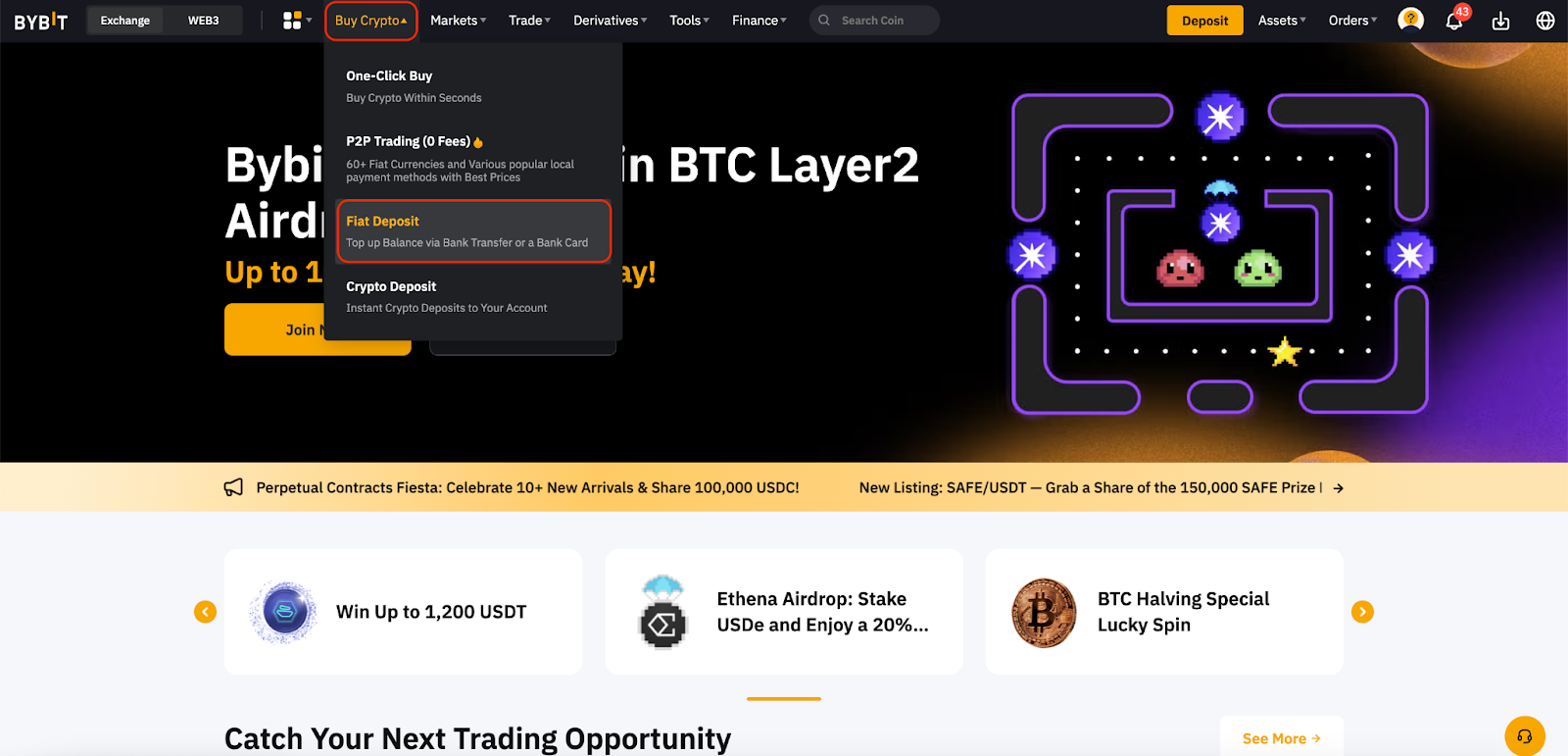
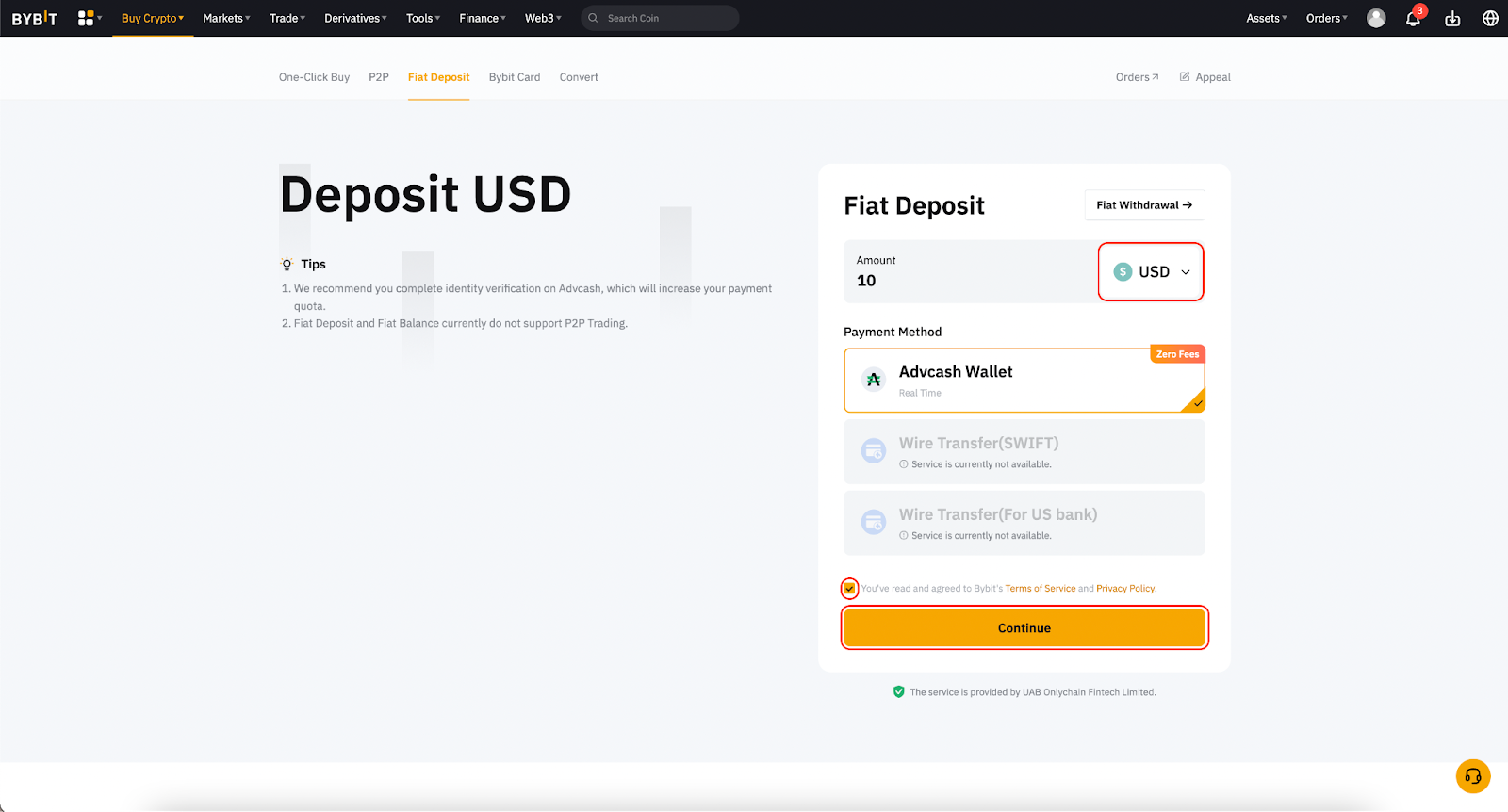
Step 2: Select your preferred fiat currency by clicking on the drop-down menu, and input the amount that you would like to deposit. You may then choose your preferred payment method. Once done, click on Continue.
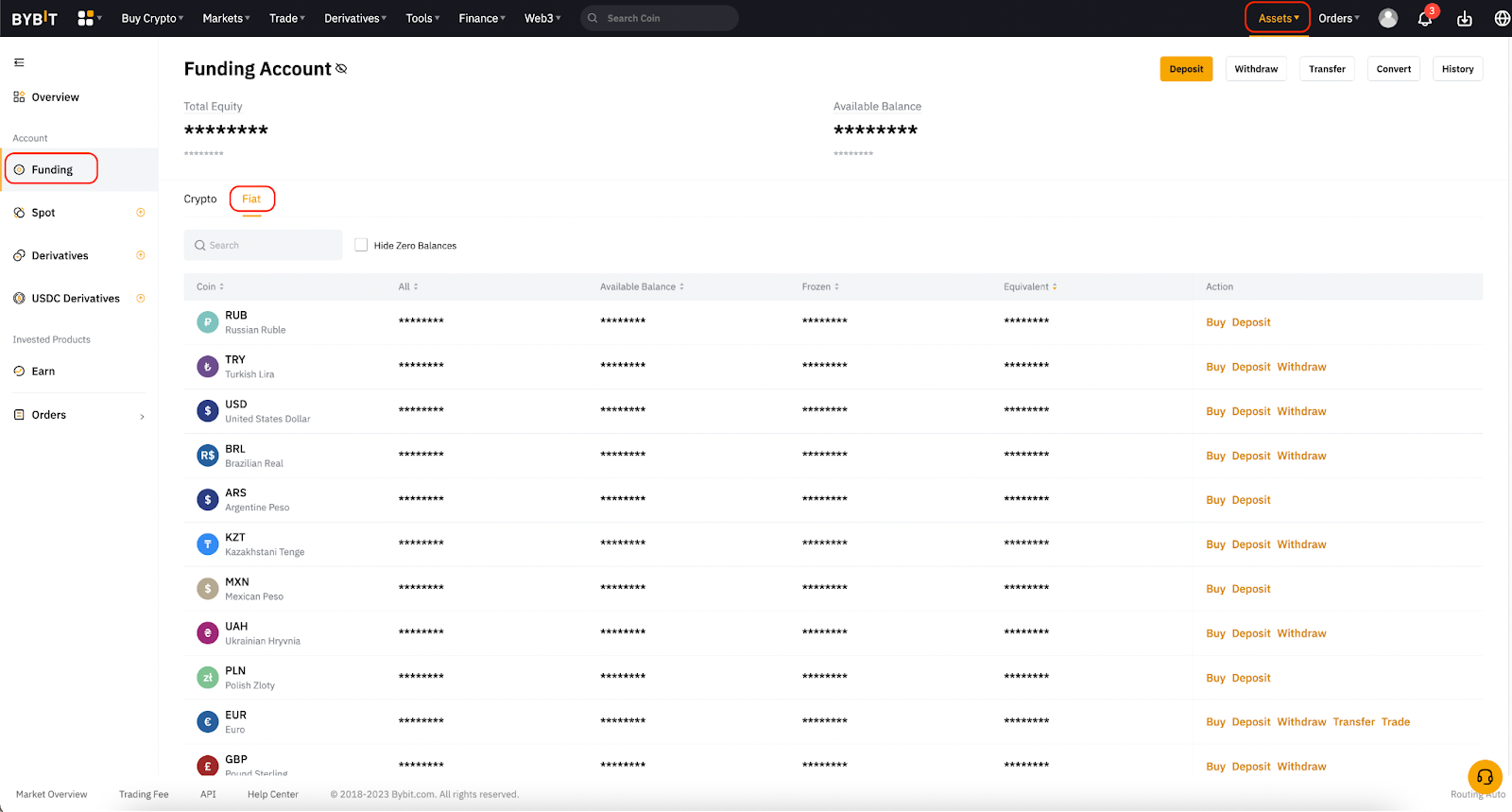
Step 3: After the transaction has been processed, you can view your fiat currency under Assets in your Funding Account under the Fiat tab. You can then proceed to purchase crypto with these funds.
Buying crypto via P2P trading
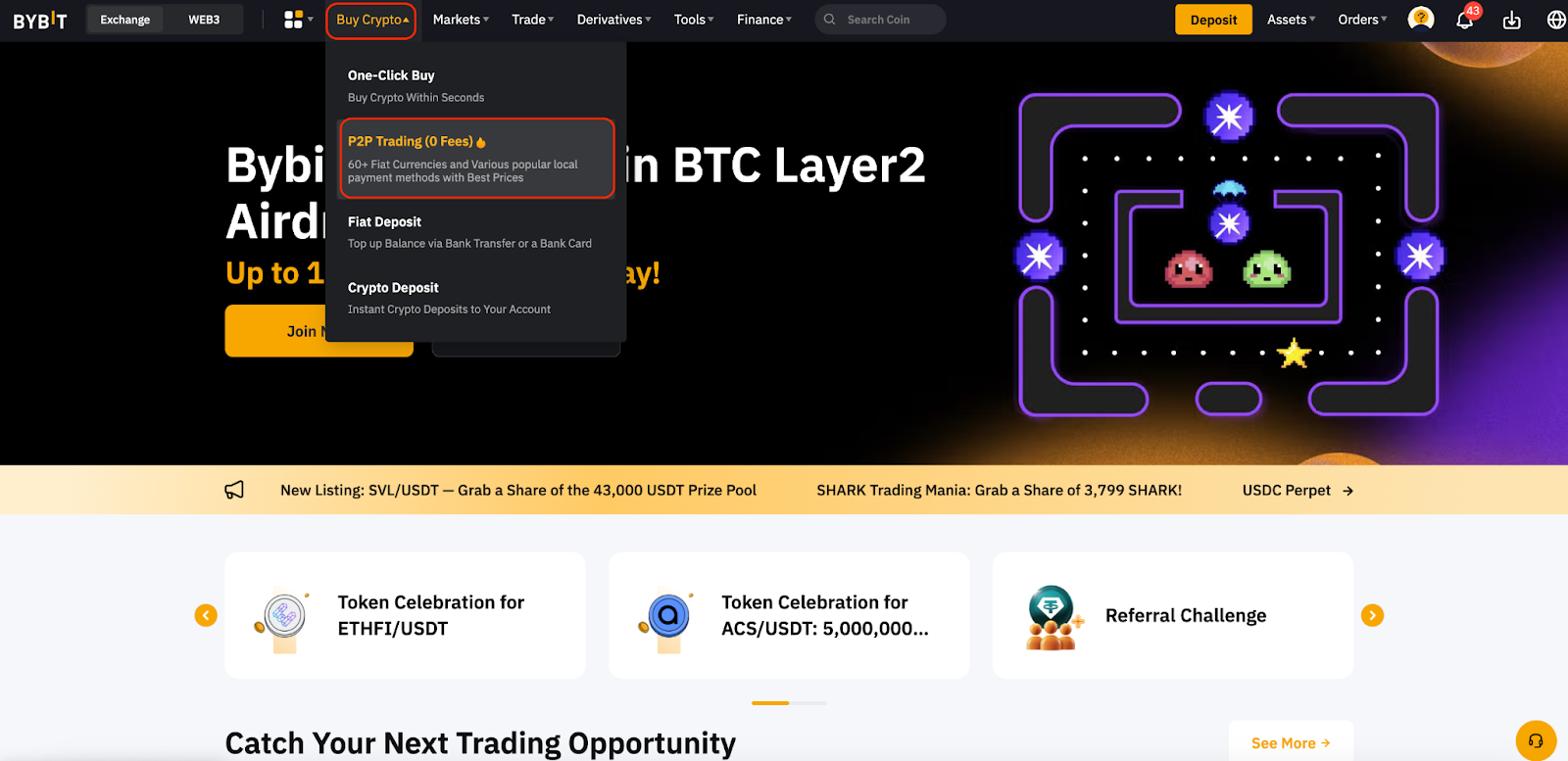
Step 1: After you’ve logged into your Bybit account, hover your cursor over the Buy Crypto tab on the top left corner of the Bybit homepage and click on P2P Trading.
Step 2: On the Buy page, you can enter your preferred criteria for Amount, Fiat Currencies or Payment Methods, based on your transaction needs, to filter advertisers.
Step 3: Choose the advertiser you want and click on Buy USDT.
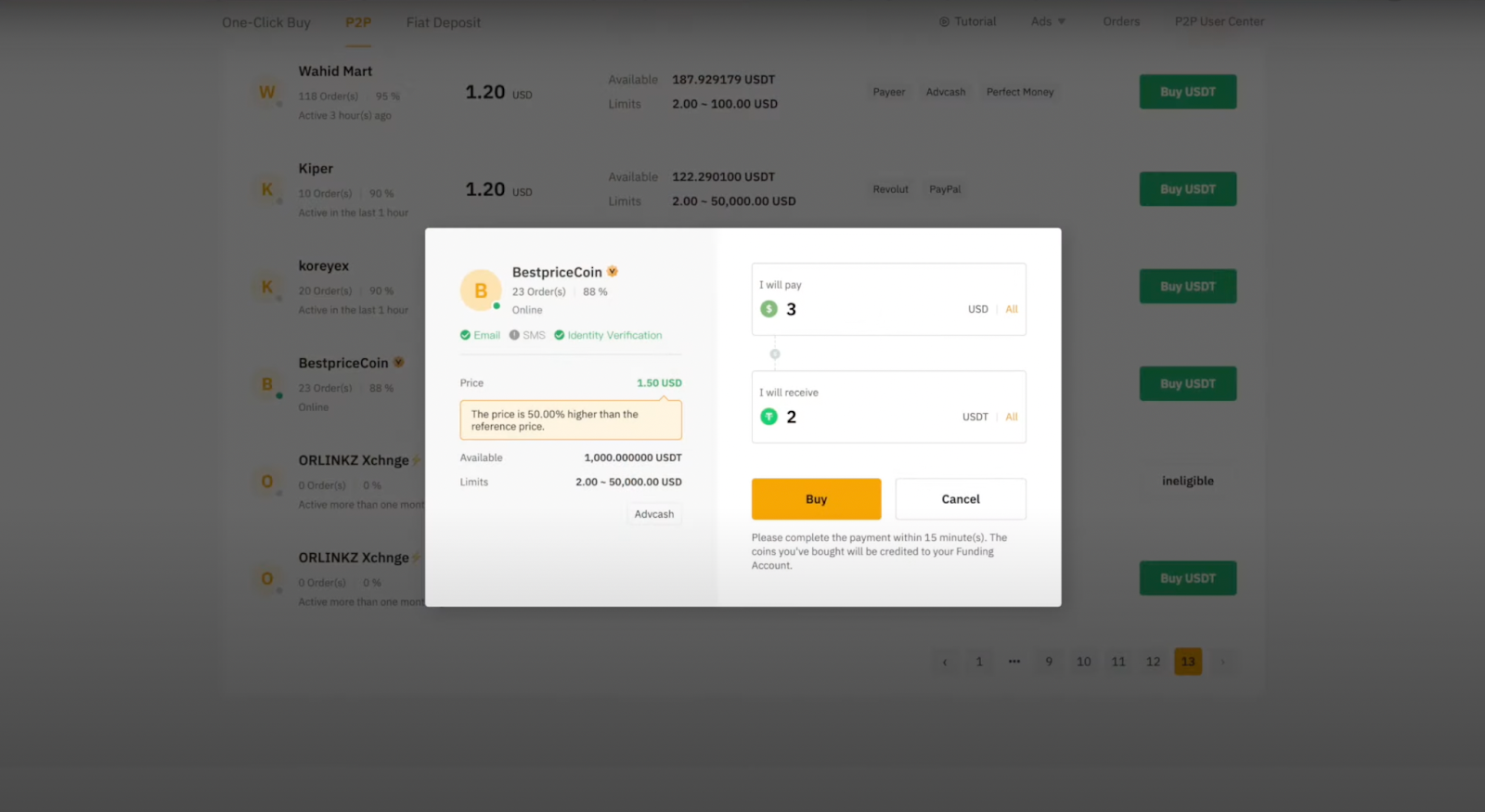
Step 4: A window will pop up and you may enter the amount of fiat you’re willing to pay or the quantity of coins you would like to receive. Then, click on Buy to proceed.
Step 5: You’ll be redirected to the order page, and will have 15 minutes to transfer the money to the seller’s bank account. Please be sure all your details are correct before proceeding.

Step 6: Once you’ve completed the payment, click on Payment Completed.
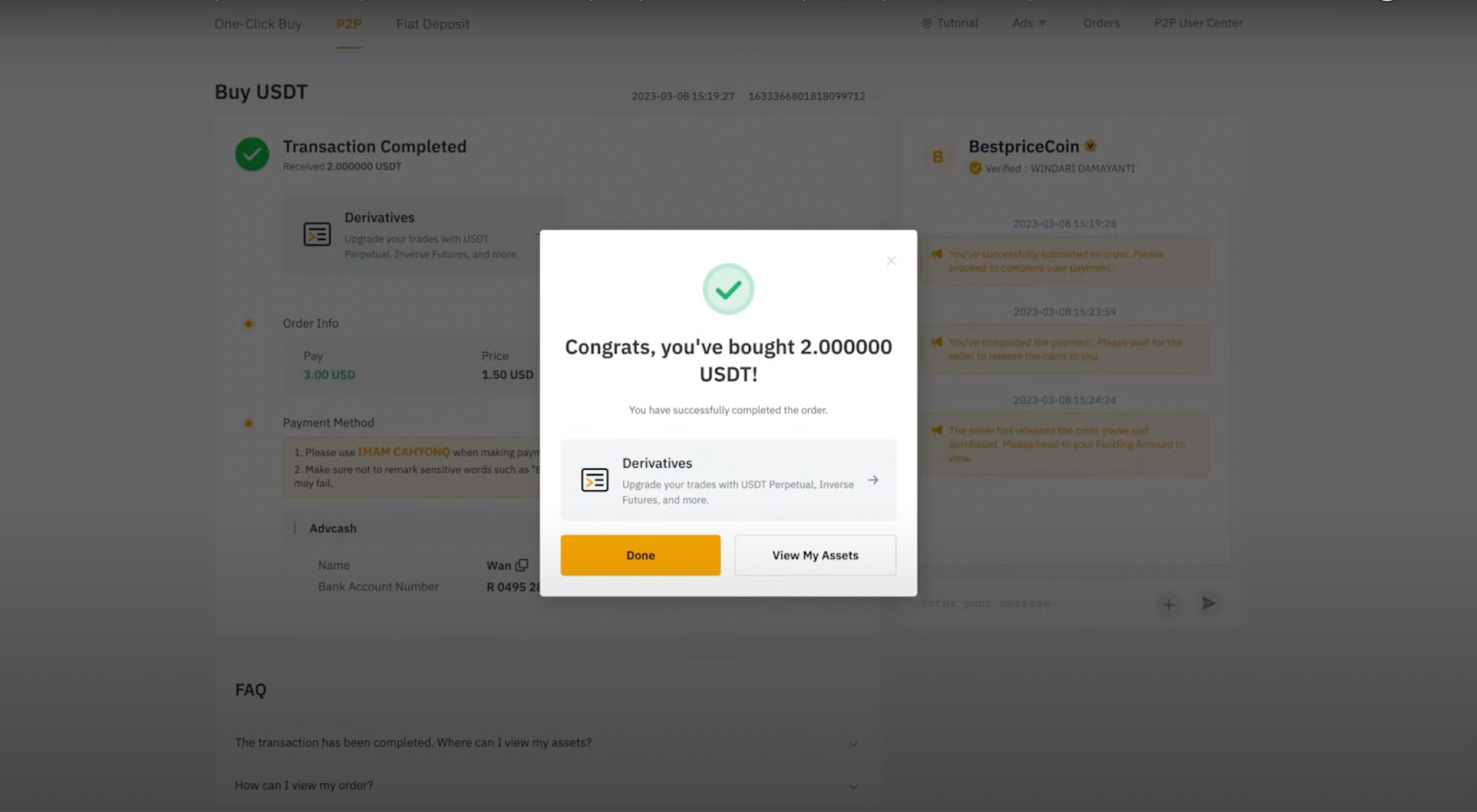
Step 7: When the seller successfully releases the coins to you, you can click on Check Asset to view them. However, if the seller fails to release the funds to you after 10 minutes, you can click on Submit Appeal and our customer support team will reach out to you.
The bottom line
Now that you’ve learned how to fund your account, whether by transferring funds from another wallet to your Bybit account or by purchasing crypto, you’re one step closer to beginning your crypto journey with Bybit! If you’d like to learn more about Bybit, such as how you can open a trade or make a withdrawal, please check out our detailed guides here.
Disclaimer:
All forms of investments carry risks, including the risk of losing all of the invested amount. Such activities may not be suitable for everyone.
#LearnWithBybit