


How to get started with spot trading on AED pairs

Starting to trade digital assets is an important move toward managing your own finances. For people in the United Arab Emirates and nearby areas, trading directly with your local currency makes things much easier.
Bybit has integrated United Arab Emirates dirham (AED) trading pairs, allowing you to bypass the complexities of multiple conversions and manage your portfolio with greater precision.
This guide provides a comprehensive walkthrough on how to navigate the Bybit platform, both on the mobile app and web, to execute trades using AED pairs effectively.
Key Takeaways:
You can trade major assets such as USDT (the most popular USDT/AED pair), Bitcoin (BTC), Ethereum (ETH), and Solana (SOL) directly with AED.
Spot trading with AED pairs is available on both the Bybit website and mobile app.
Bybit offers several order types, such as market, limit and conditional orders, to match different trading strategies.
Spot trading using AED trading pairs on the Bybit mobile app
This guide walks you through the step-by-step process of placing spot trades using AED trading pairs on the Bybit mobile app.
Step 1: Select AED spot trading pairs
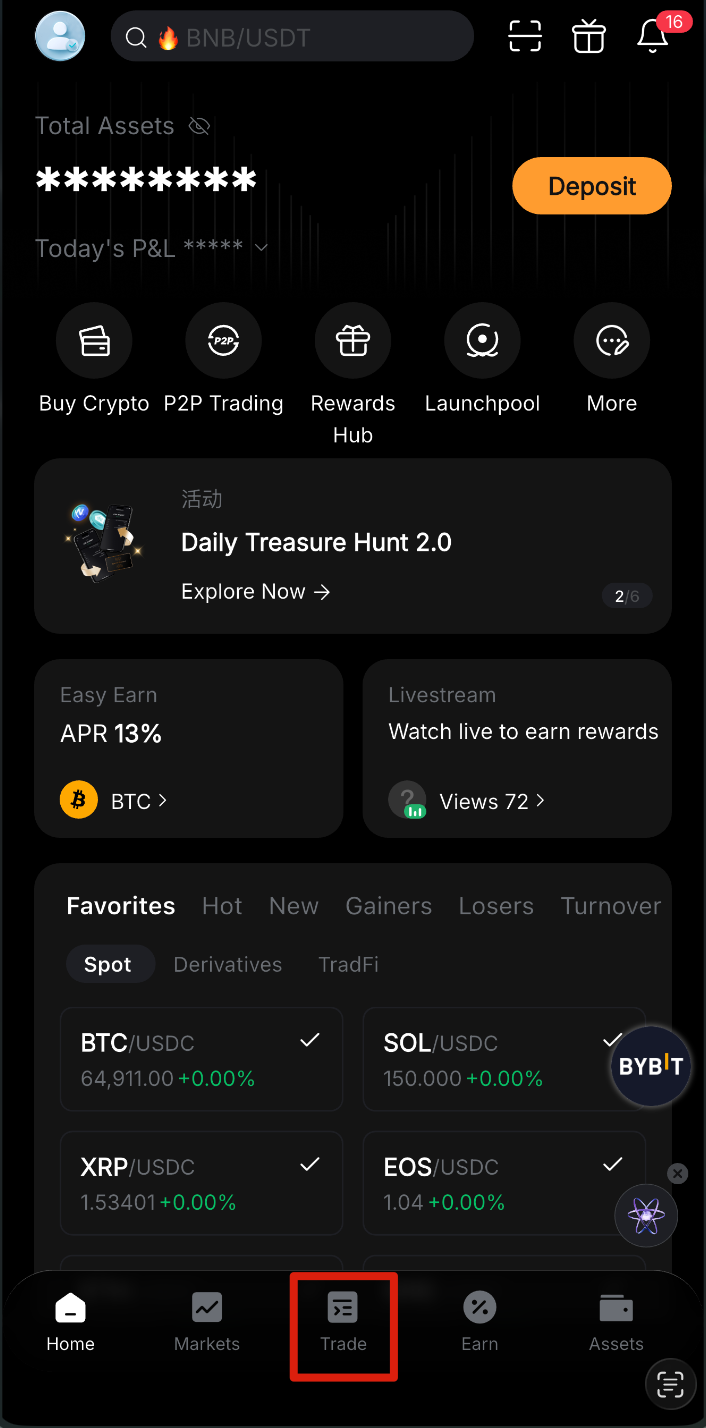
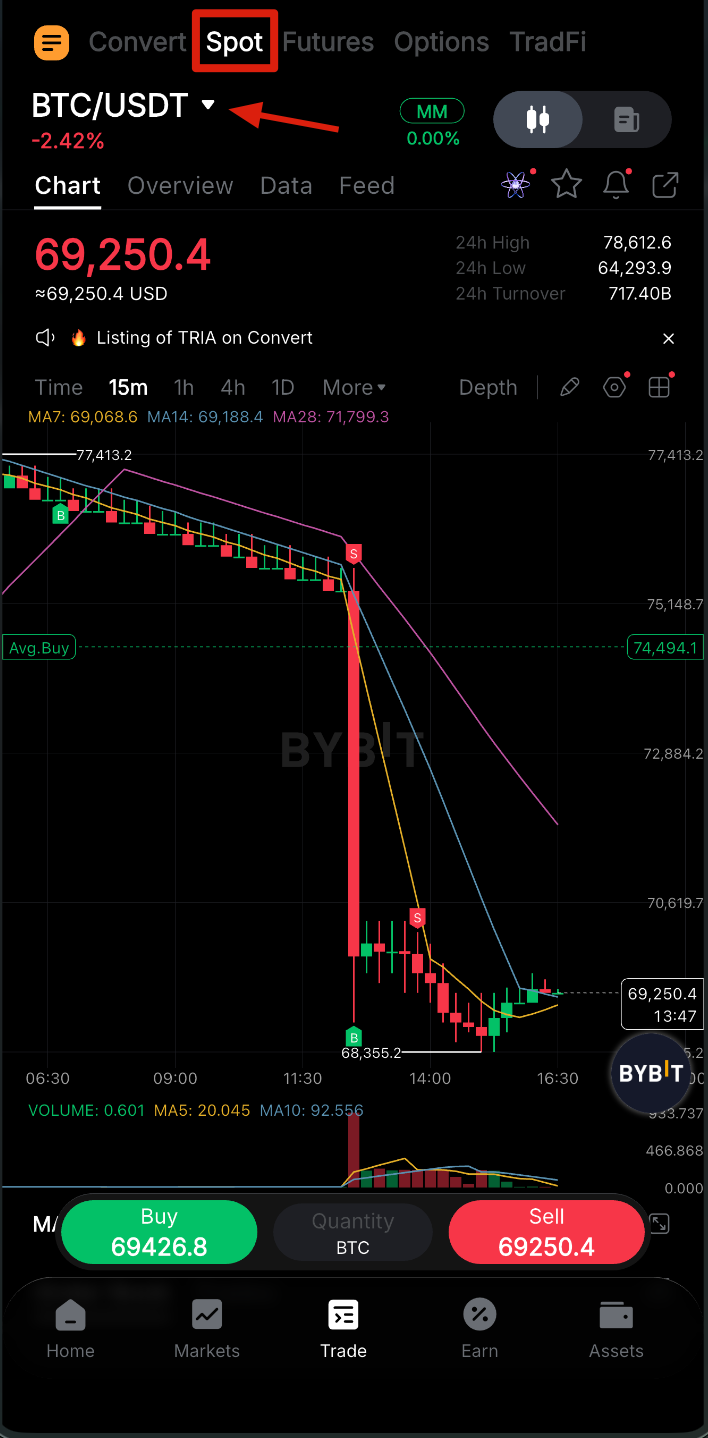
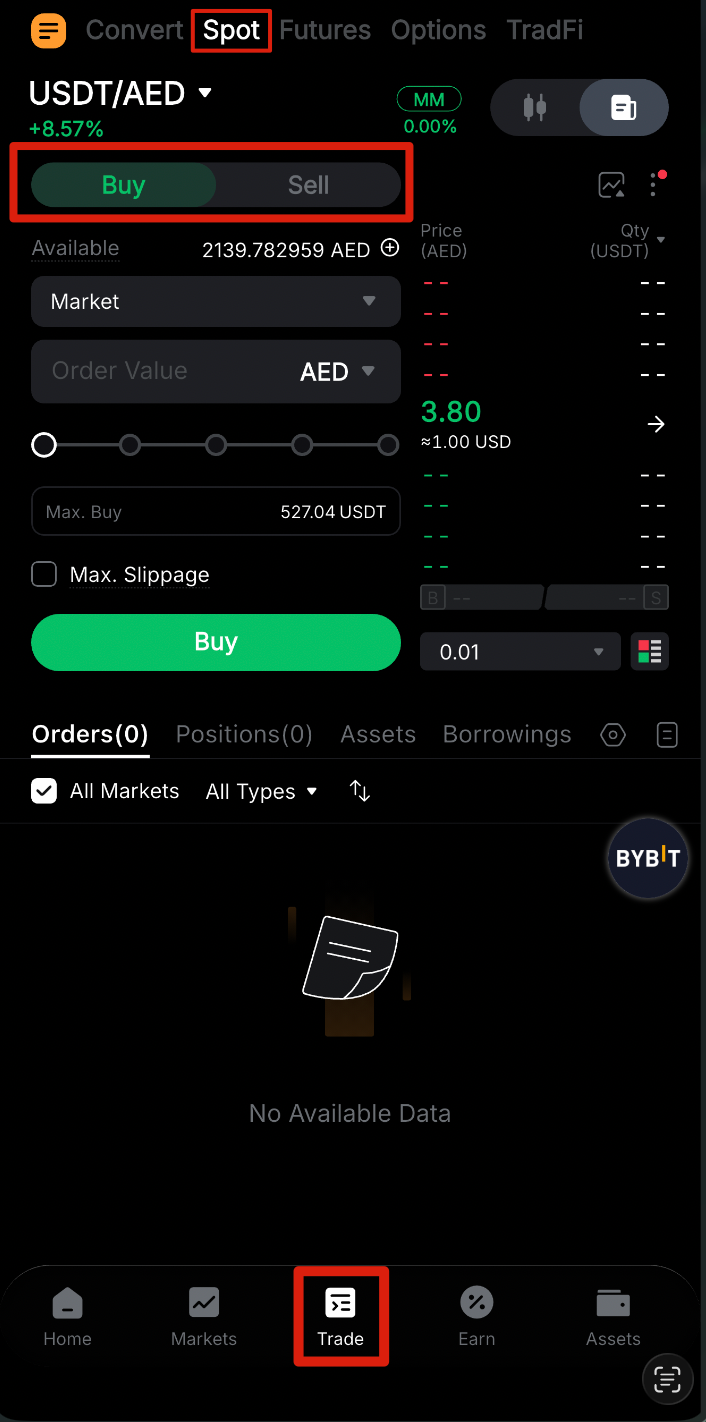
To begin, open the Bybit App and tap on Trade at the bottom of the screen. Select Spot to enter the spot trading interface. Next, tap on the drop-down icon located next to the trading pair displayed at the top of the page.
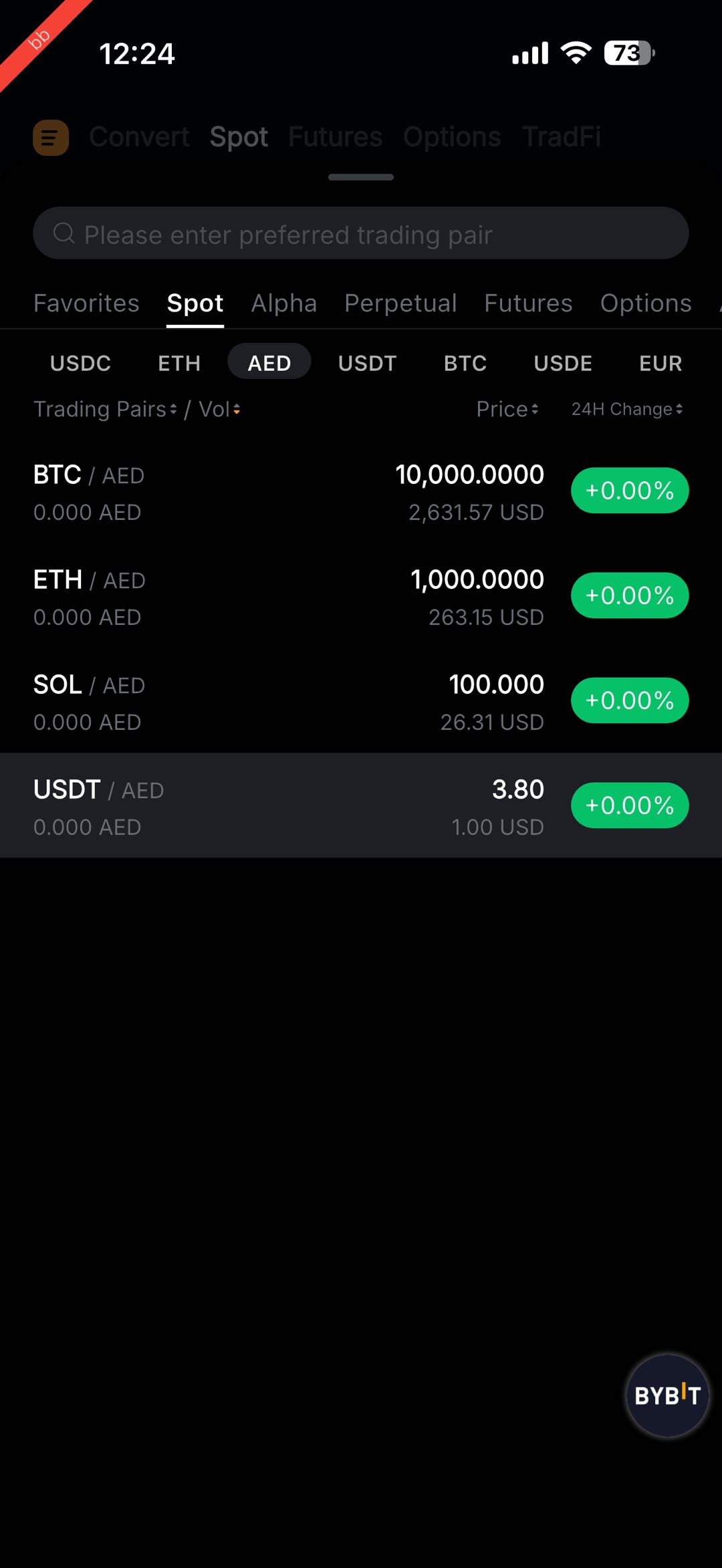
Navigate to the AED Spot tab to view all supported AED spot trading pairs. You will see a list of available pairs, including the following:
USDT/AED
BTC/AED
ETH/AED
SOL/AED
For each pair, you can view the last traded price and the 24-hour price change percentage. To quickly find a specific pair, use the search box, and enter the pair you want to view.
Step 2: Place your order
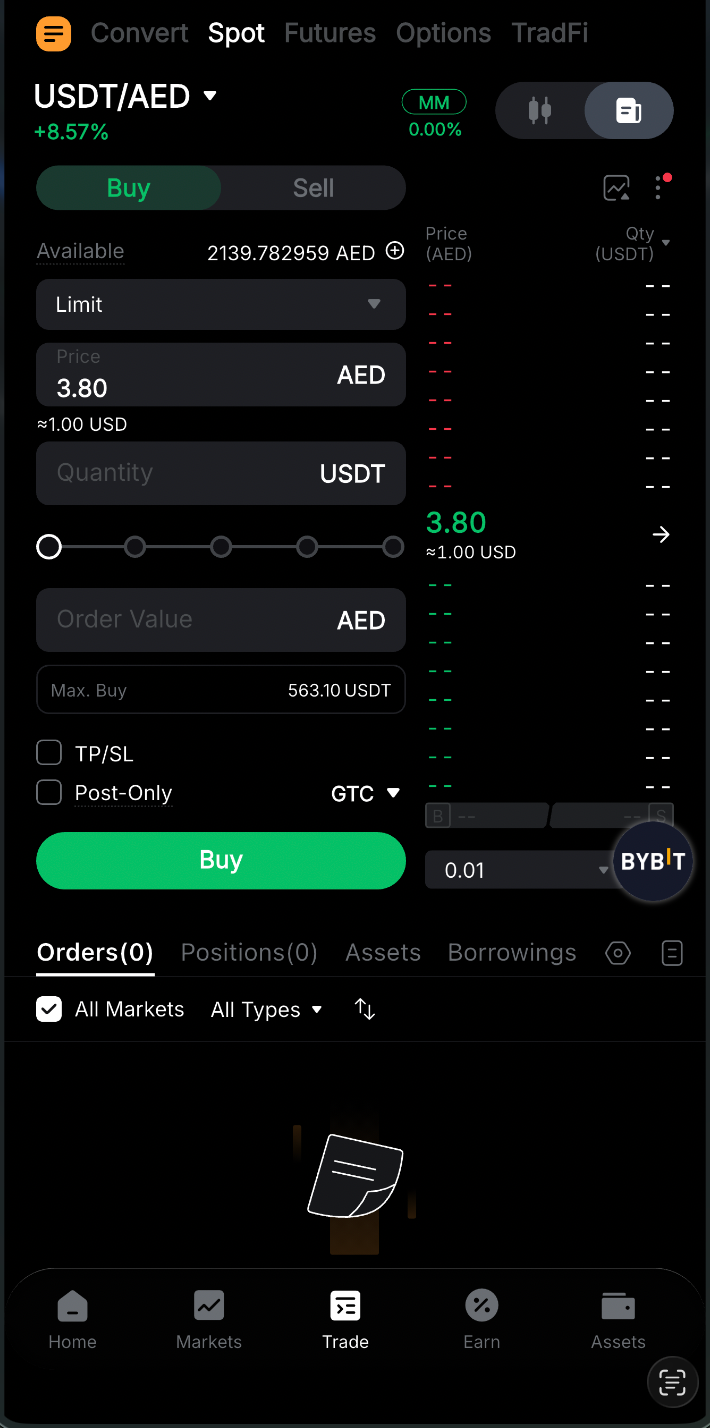
Bybit AED spot trading supports multiple order types. If you would like to understand the differences between them, you can refer to the Types of Orders Available on Bybit guide. Below is an example using a market order.
Step 2.1: Choose Buy or Sell
Ensure that you’re in the AED Spot tab, and select whether you want to Buy or Sell the asset.
Step 2.2: Enter order value or quantity
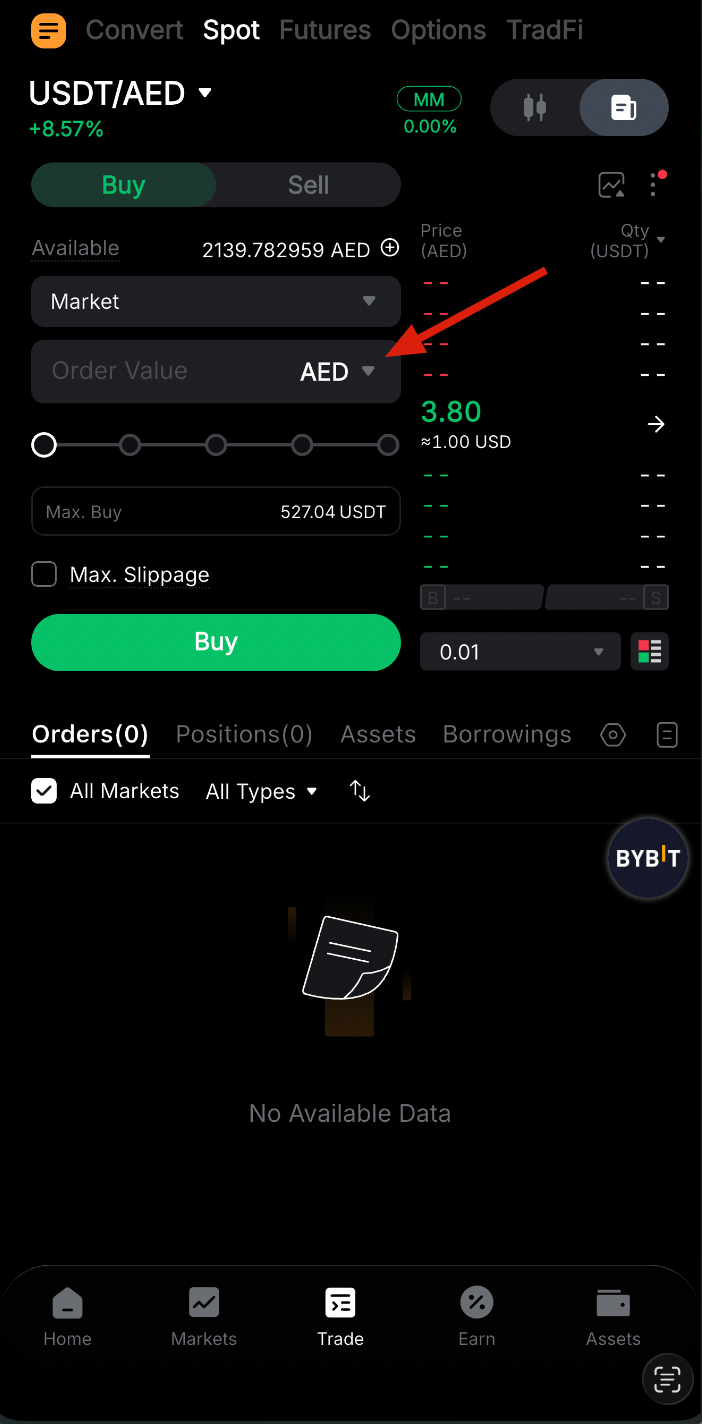
Enter your order value or quantity, depending upon your preference. If you use other types of orders, such as limit or conditional orders, you’ll also need to enter the order price and trigger price (if applicable).
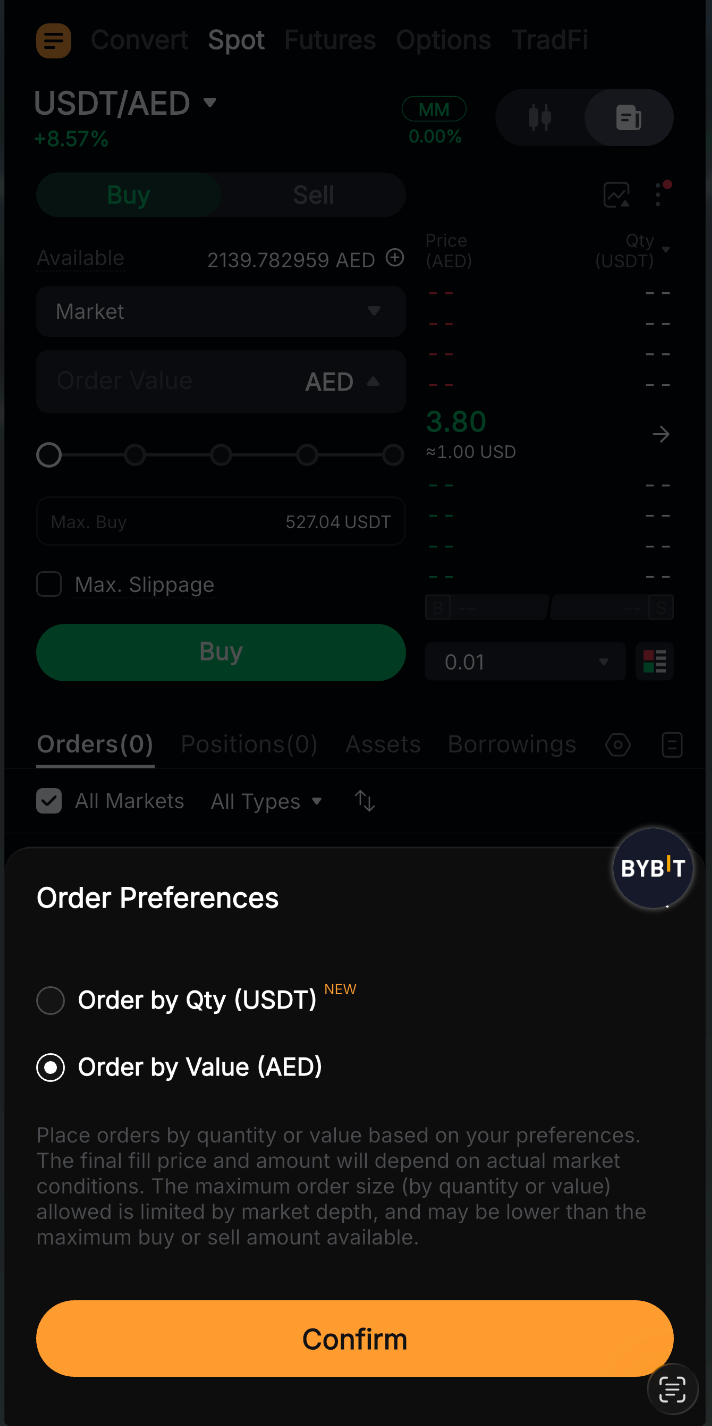
By default, market buy orders are placed by value, while market sell orders are placed by quantity. You can tap on Order by Value or Order by Qty to switch methods.
Note: When selecting 100% of your available balance, there may be a slight difference between the maximum amount shown and the final calculated value. This difference acts as a buffer to account for small market price fluctuations, and helps ensure your order is executed smoothly.
Step 2.3: Confirm your order
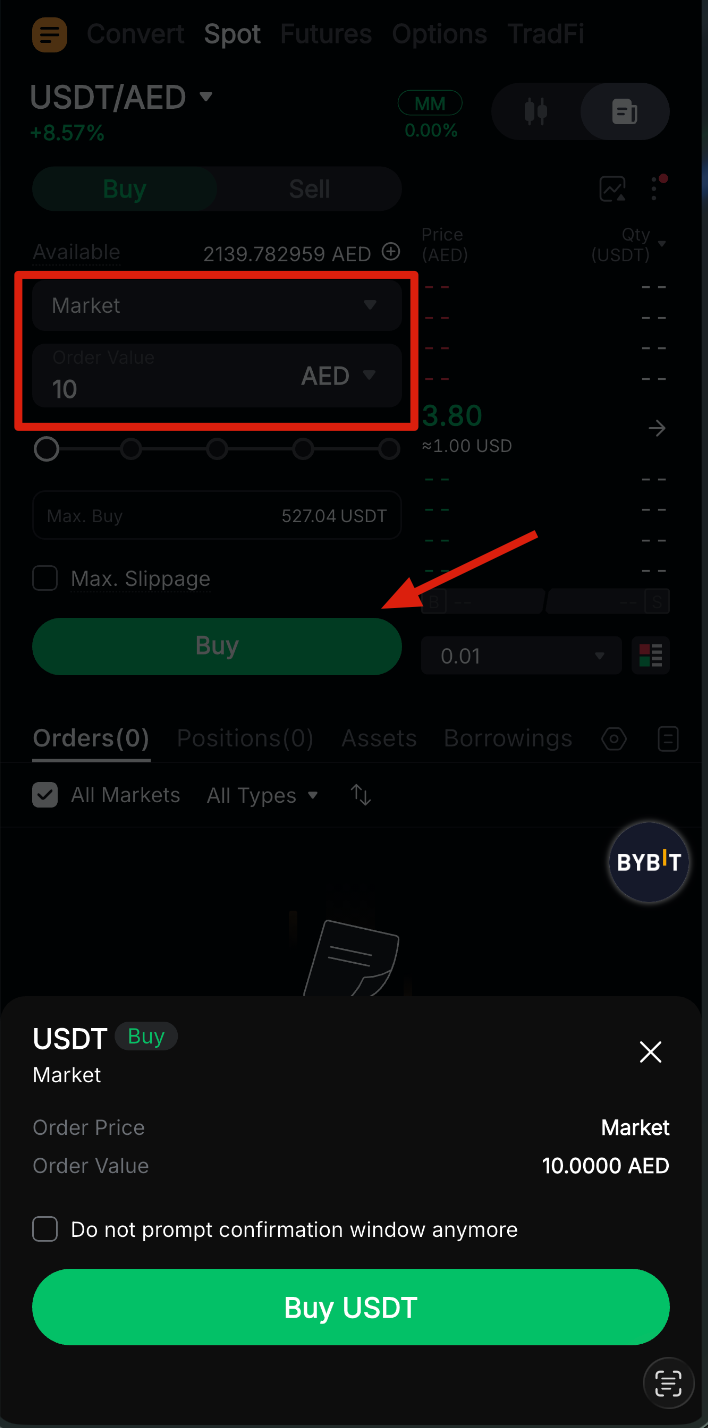
A confirmation window will appear. Review your order details carefully, and tap on Buy or Sell to submit your order. Once your order is confirmed, it will be placed successfully.
View your orders
Current orders
To monitor your active trades, navigate to the Orders tab to view all unfilled or untriggered orders. This section is vital for tracking limit and conditional orders that are waiting for market conditions to meet your specified criteria.
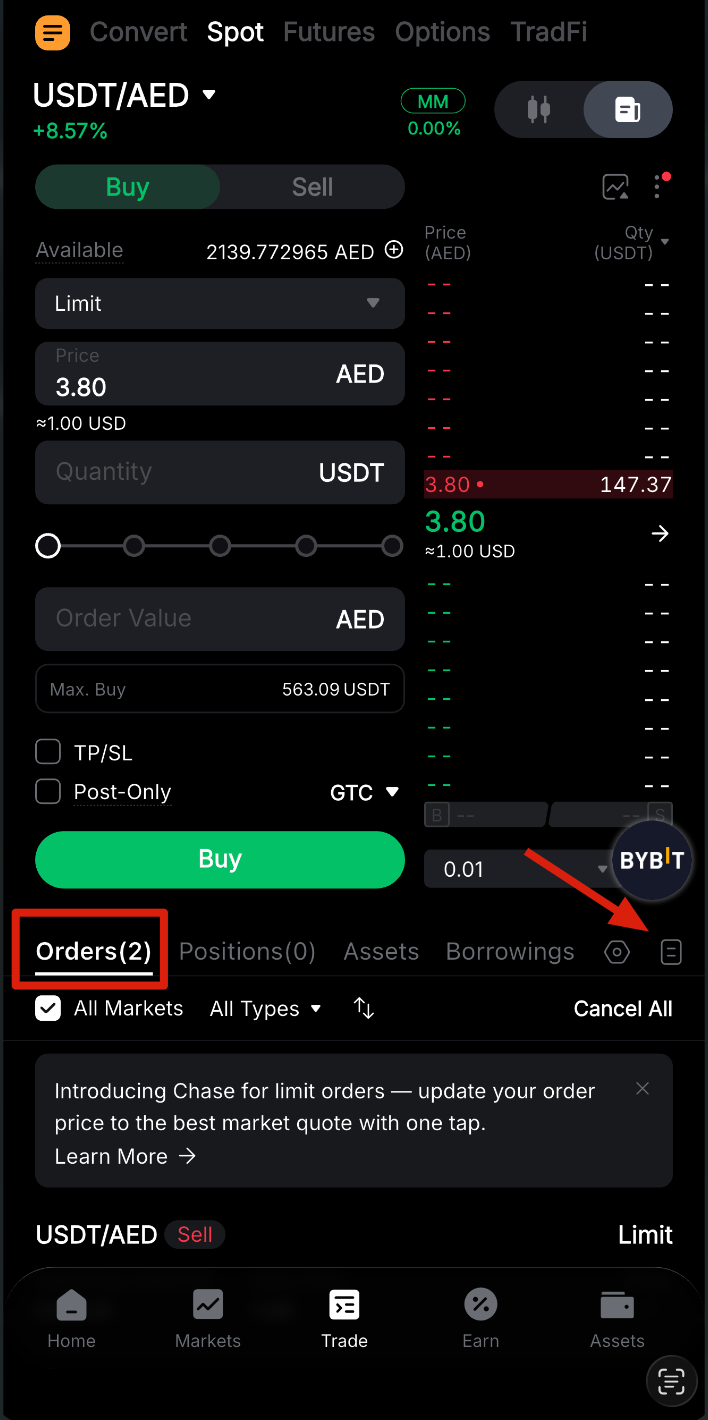
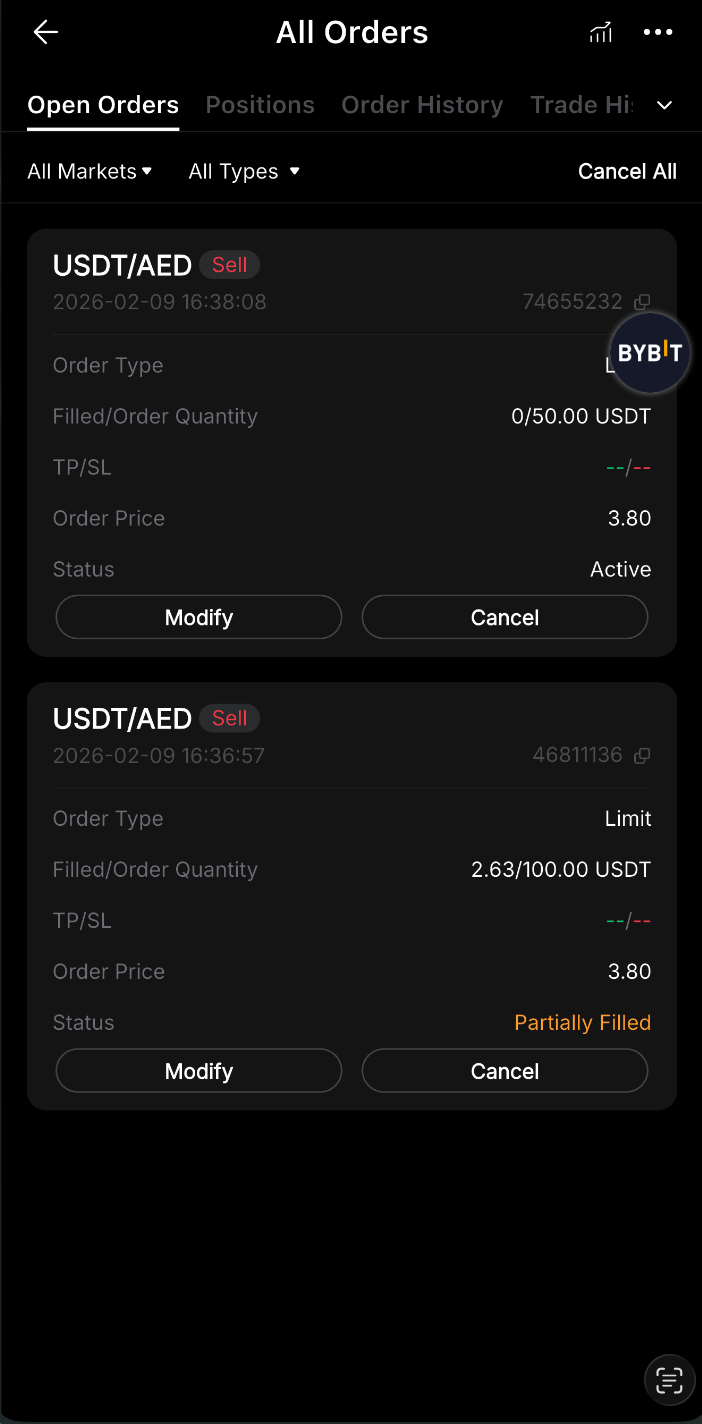
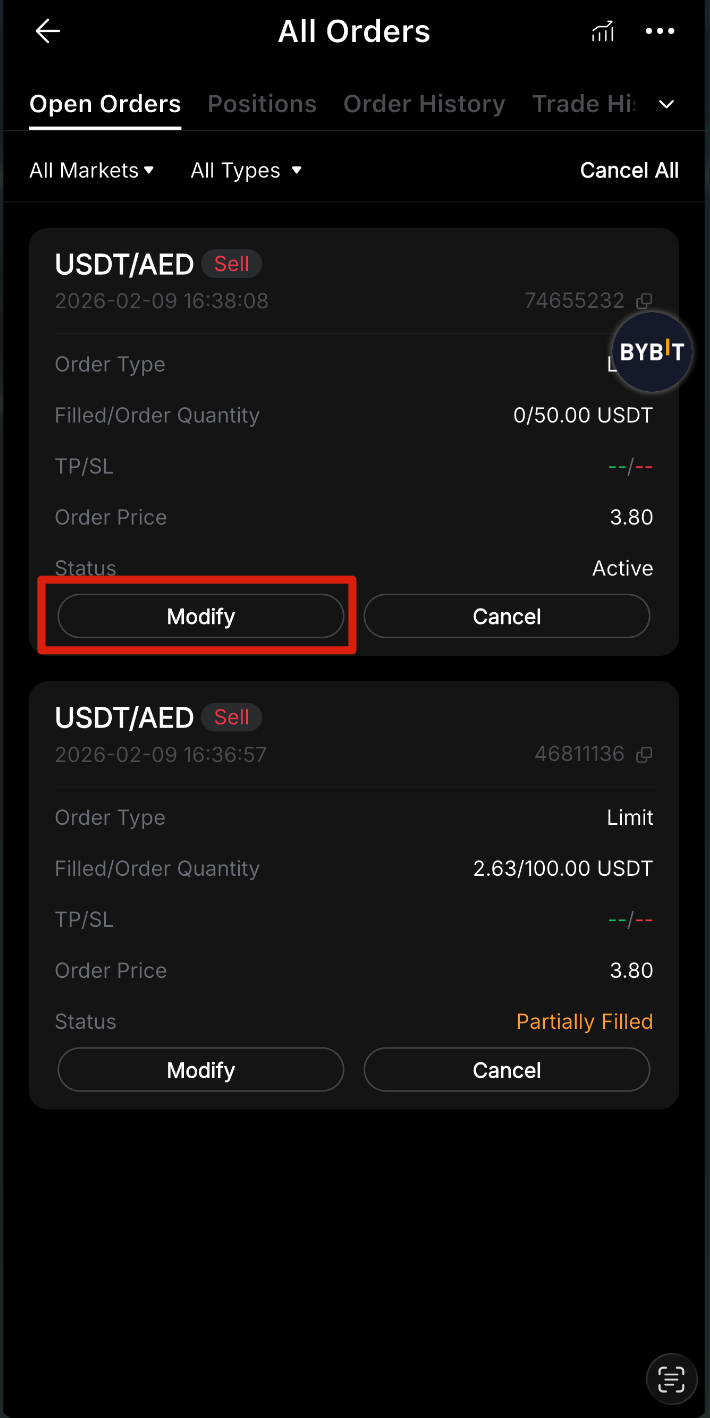
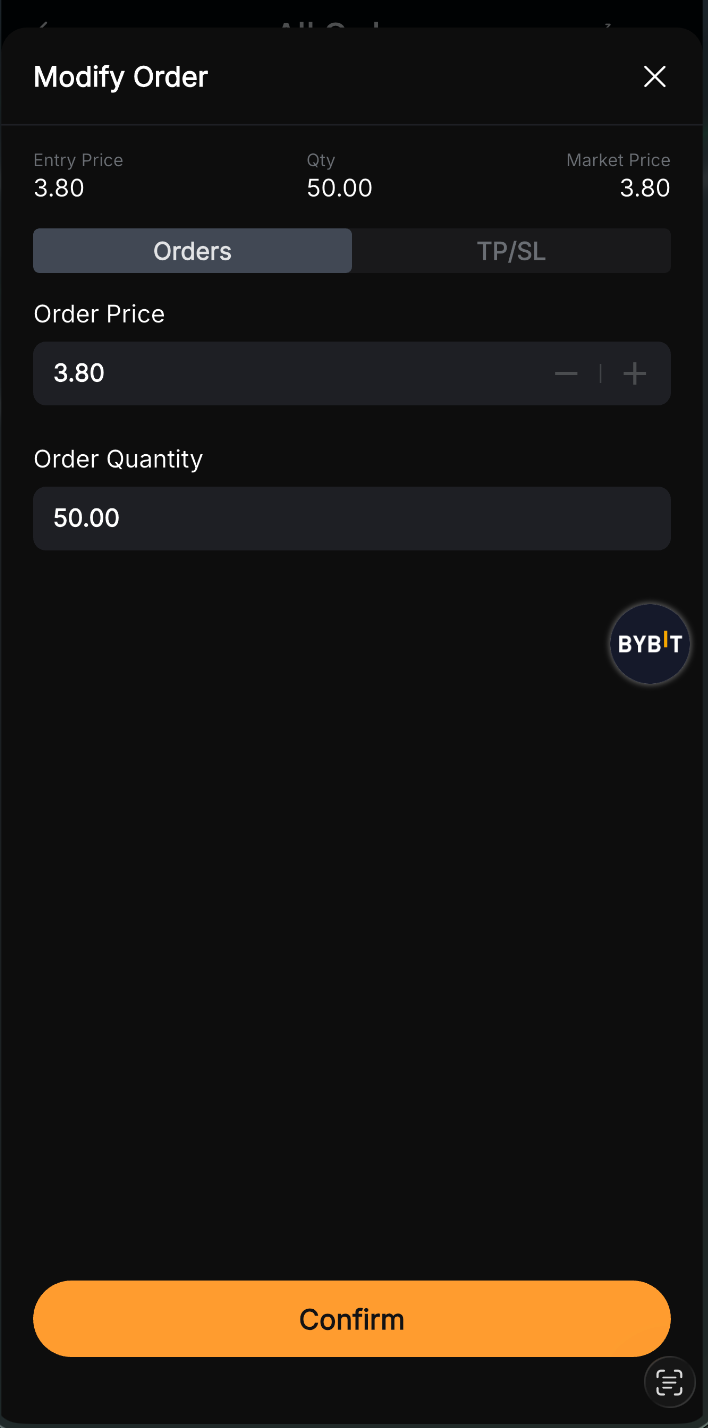
For a broader overview of your activity, enable the Show All feature to simultaneously see every open order across all trading pairs. If you need to react to sudden market shifts, you can tap on Modify under an order's details to adjust its price, trigger price or quantity without having to cancel and recreate it.
Order history and trade history
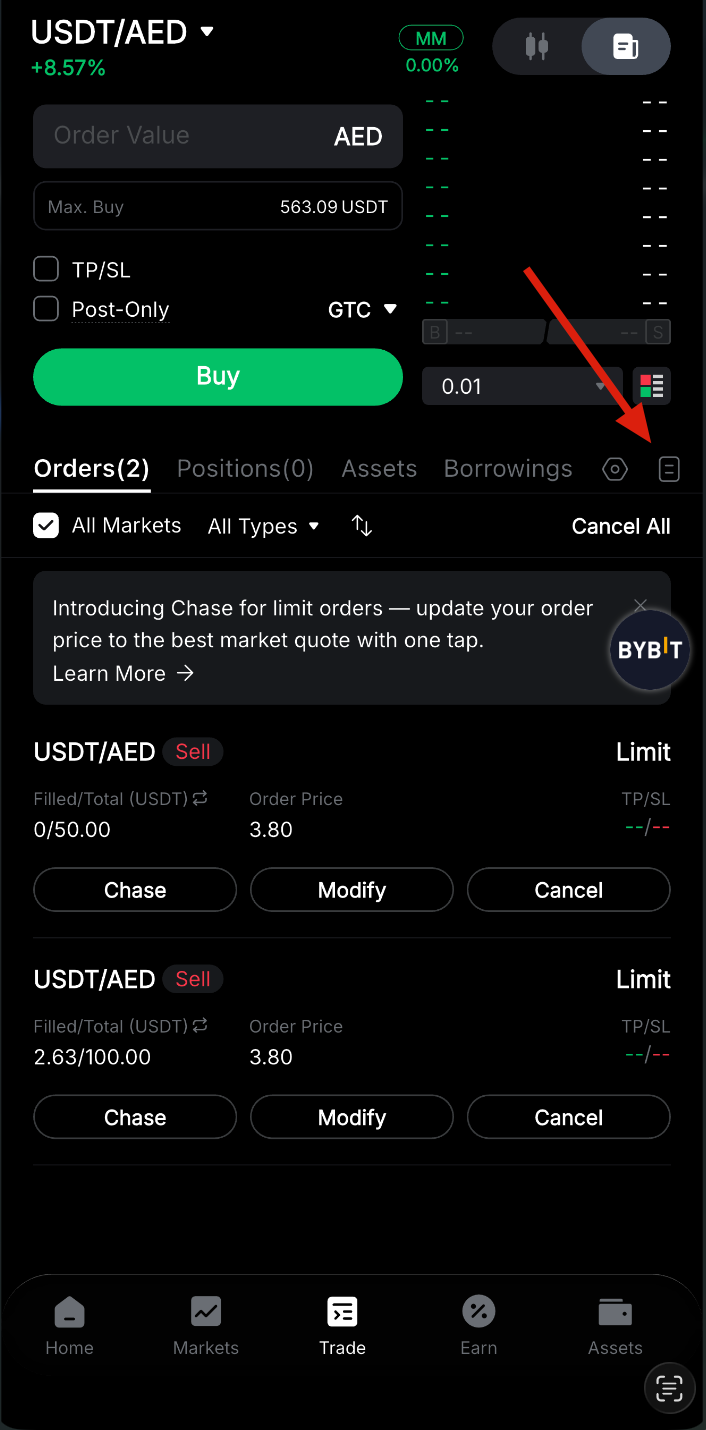
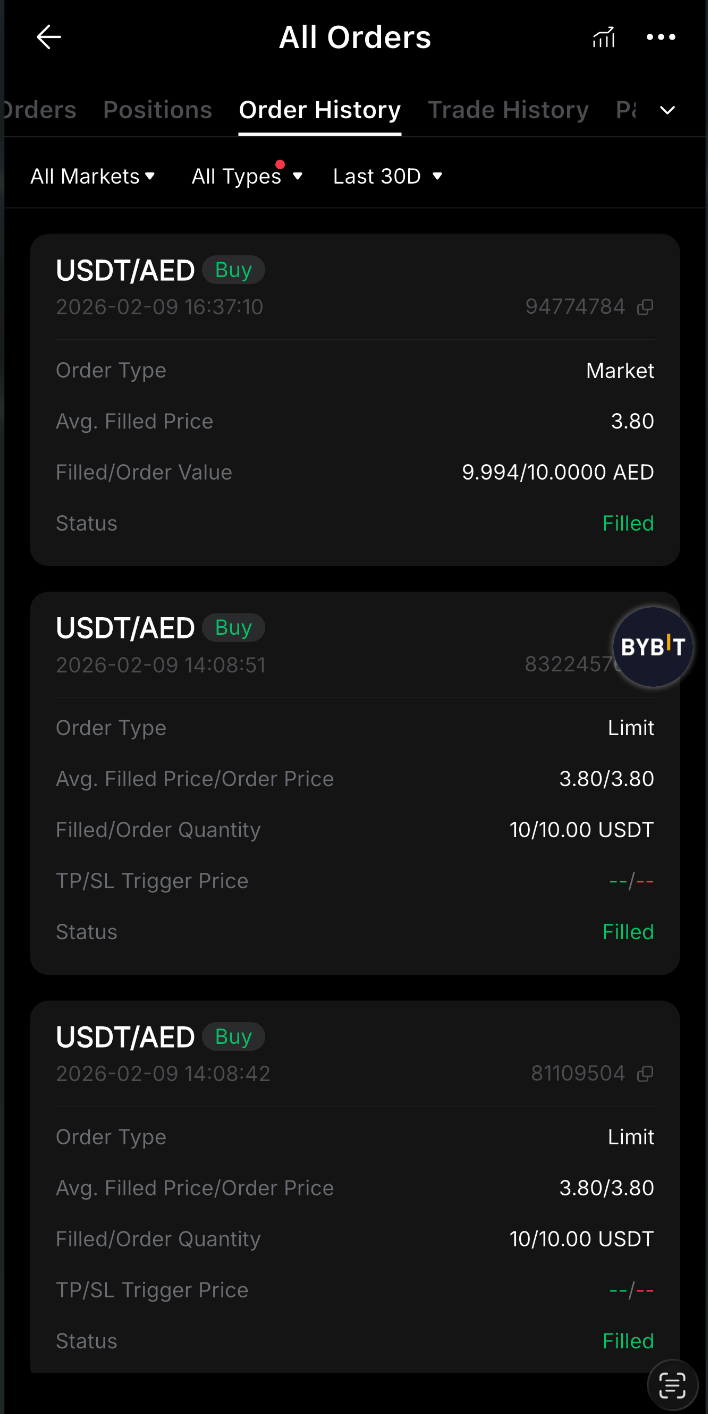
Understanding your past performance is key to refining your strategy. Tap on All Orders on the Spot trading page to access your complete record. Note that Order History displays all placed orders, including those that were canceled or unfilled, while Trade History focuses specifically on successful executions in which a transaction actually took place.
Cancel your orders
Managing risk often requires clearing the board. To cancel an individual spot order, go to the Orders tab and tap on Cancel next to the specific entry. For a faster approach, use the Cancel All button in the upper-right corner to remove multiple orders at once.
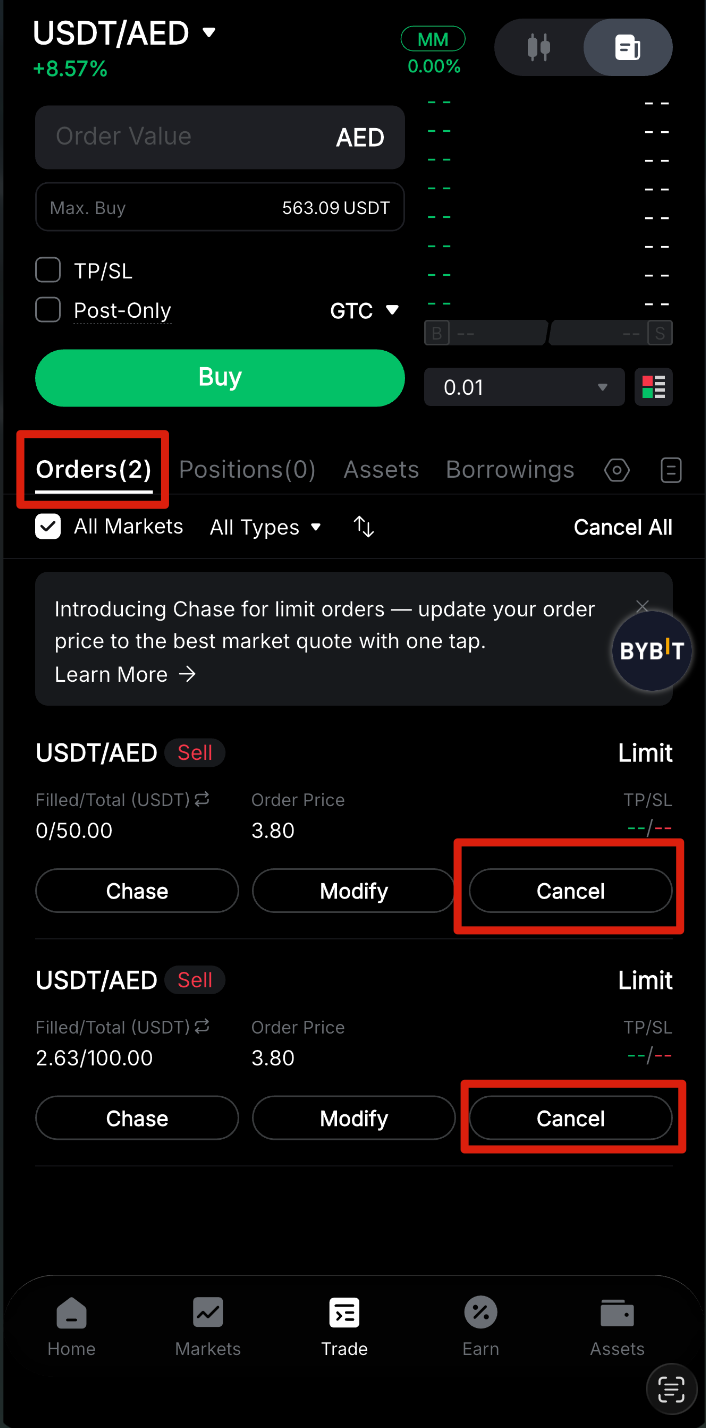
Important note: If you have Show All enabled, selecting Cancel All will immediately cancel every open order across all trading pairs on your account.
How to get started with AED spot trading on Bybit (web guide)
The following guide explains how to view AED spot trading pairs, place an order and manage your activity using the Bybit web platform.
Select trading pairs
Step 1: Open the trading pair list
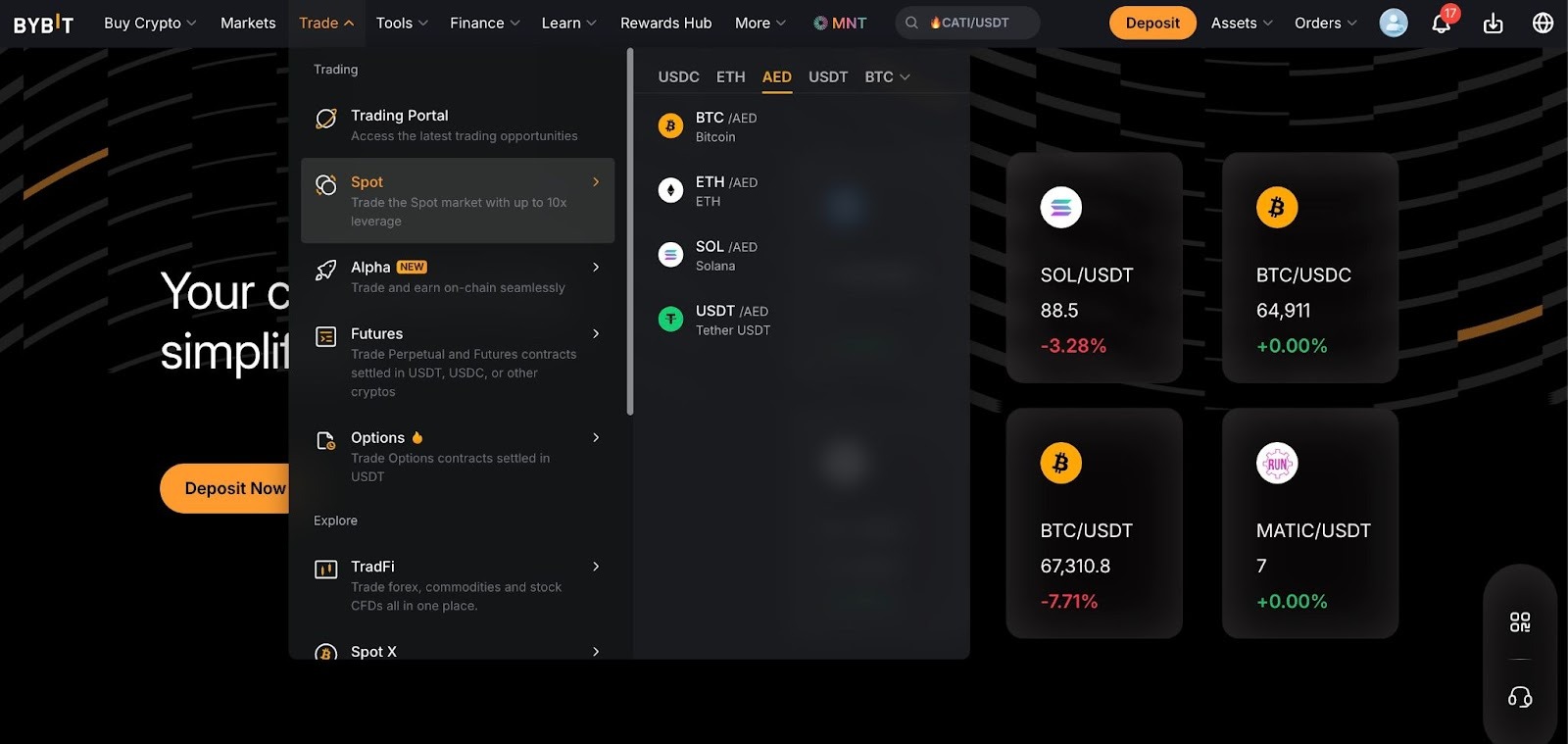
Go to the Spot trading page on Bybit. On the left side of the page, hover your cursor over the drop-down menu beside the current trading pair. The list that will appear shows supported pairs, their last traded price and the 24-hour change percentage.
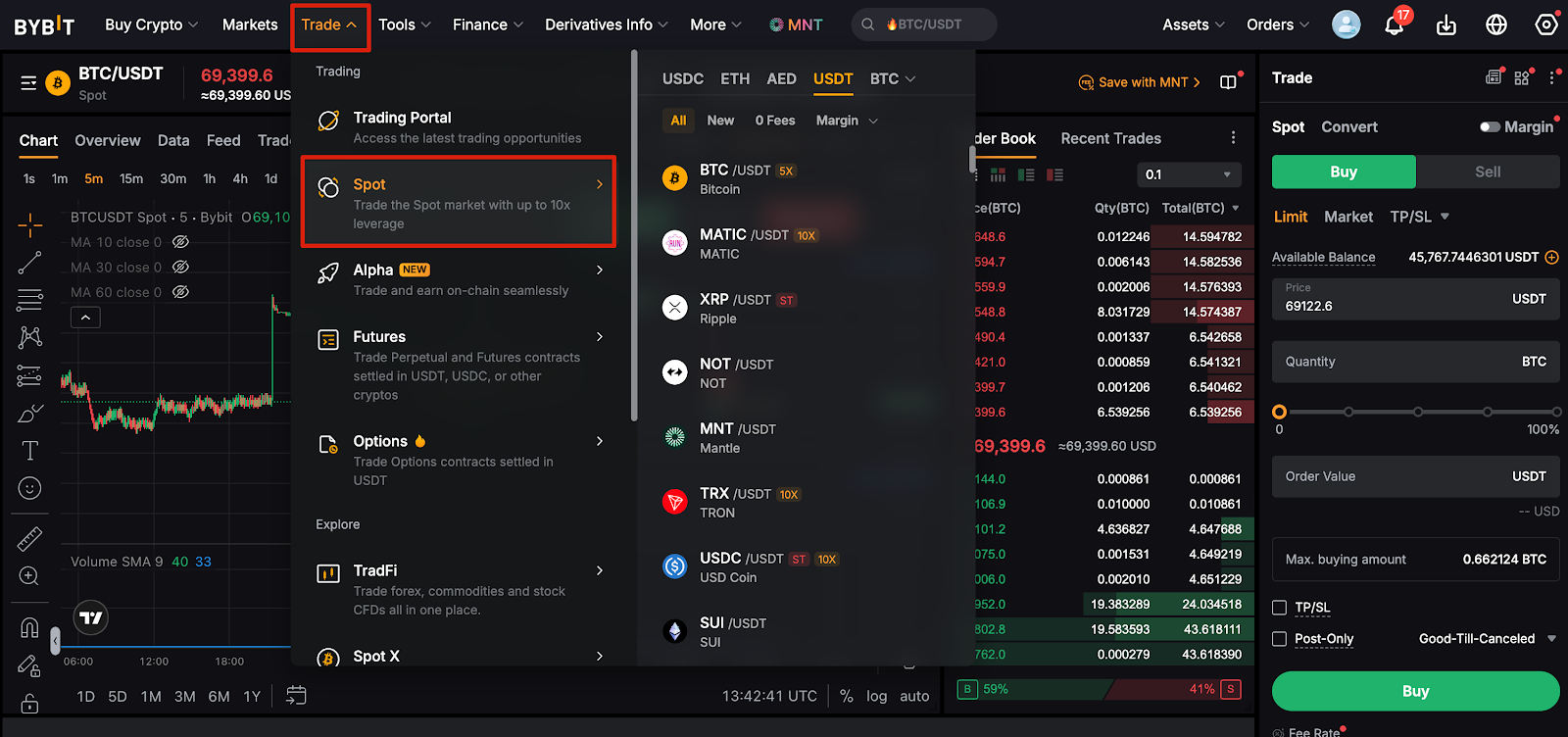
Step 2: Access AED trading pairs
From the Spot trading page, hover over the AED tab in the menu. All supported AED spot trading pairs will immediately be displayed.
Place your order
Bybit Spot trading supports multiple order types. For details on each order type, refer to Types of Orders Available on Bybit.
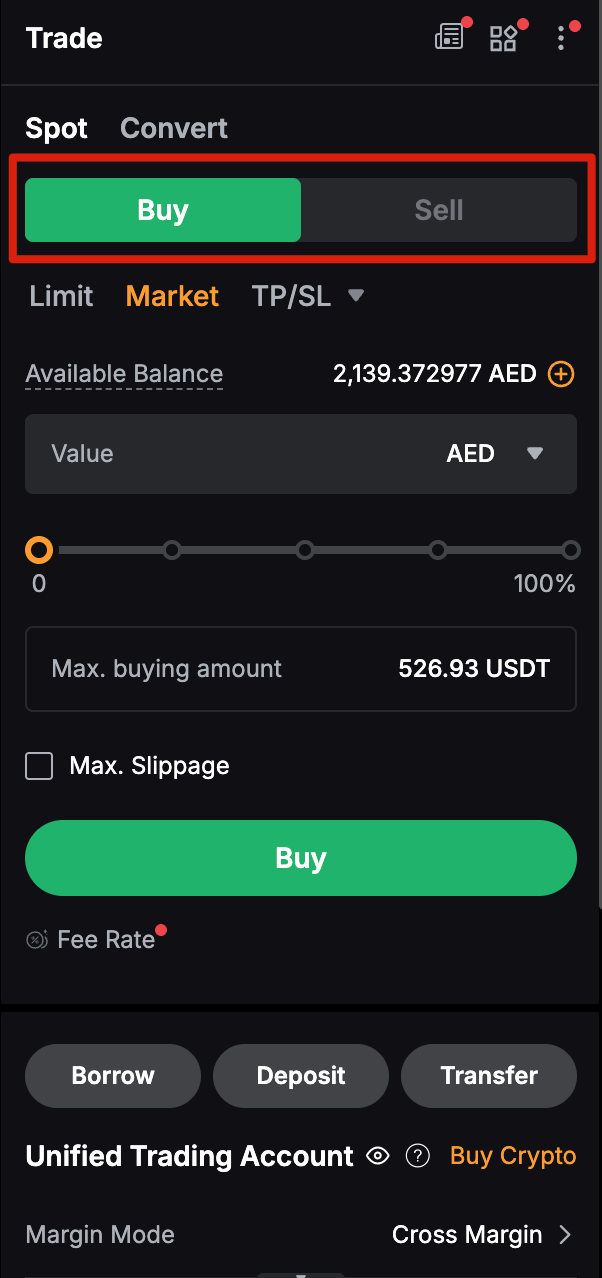
Step 1: Select Buy or Sell
Ensure that you’re in the Spot tab, and choose whether you want to Buy or Sell the asset.
Step 2: Enter order value or quantity
Enter your desired value or quantity. For limit or conditional orders, you must also enter the order price and trigger price. By default, market buy orders are placed by value, and market sell orders are placed by quantity. Click on Order by Value or Order by Qty to switch between market buy orders and market sell orders.
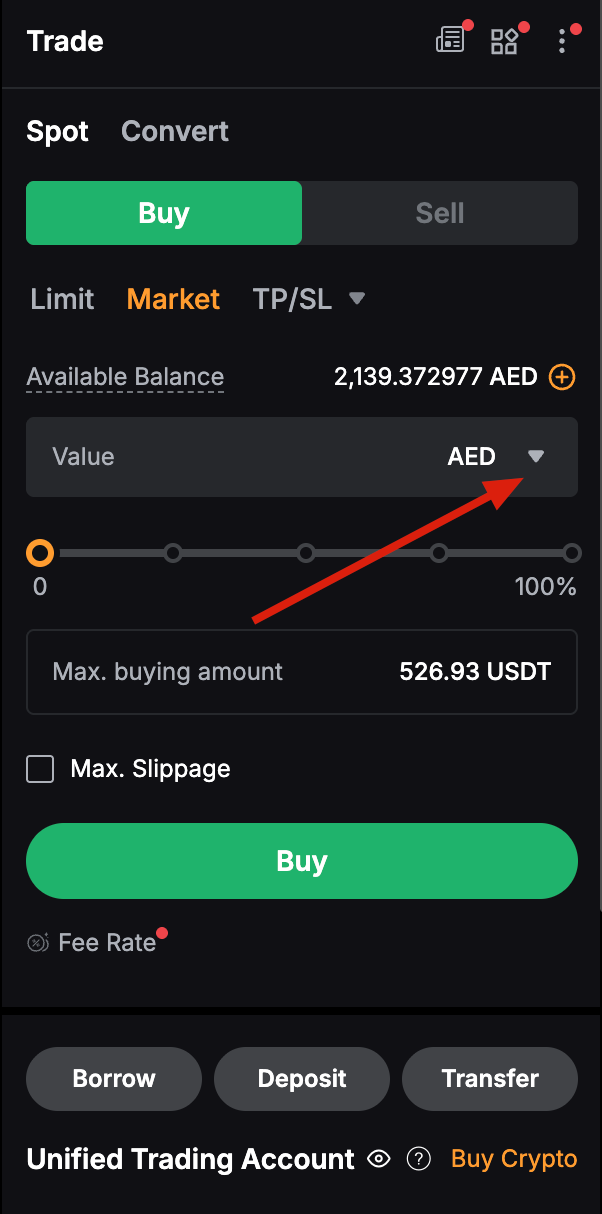
Note: Selecting 100% of your balance for a market order involves a small buffer against price fluctuations to ensure the order is placed smoothly.
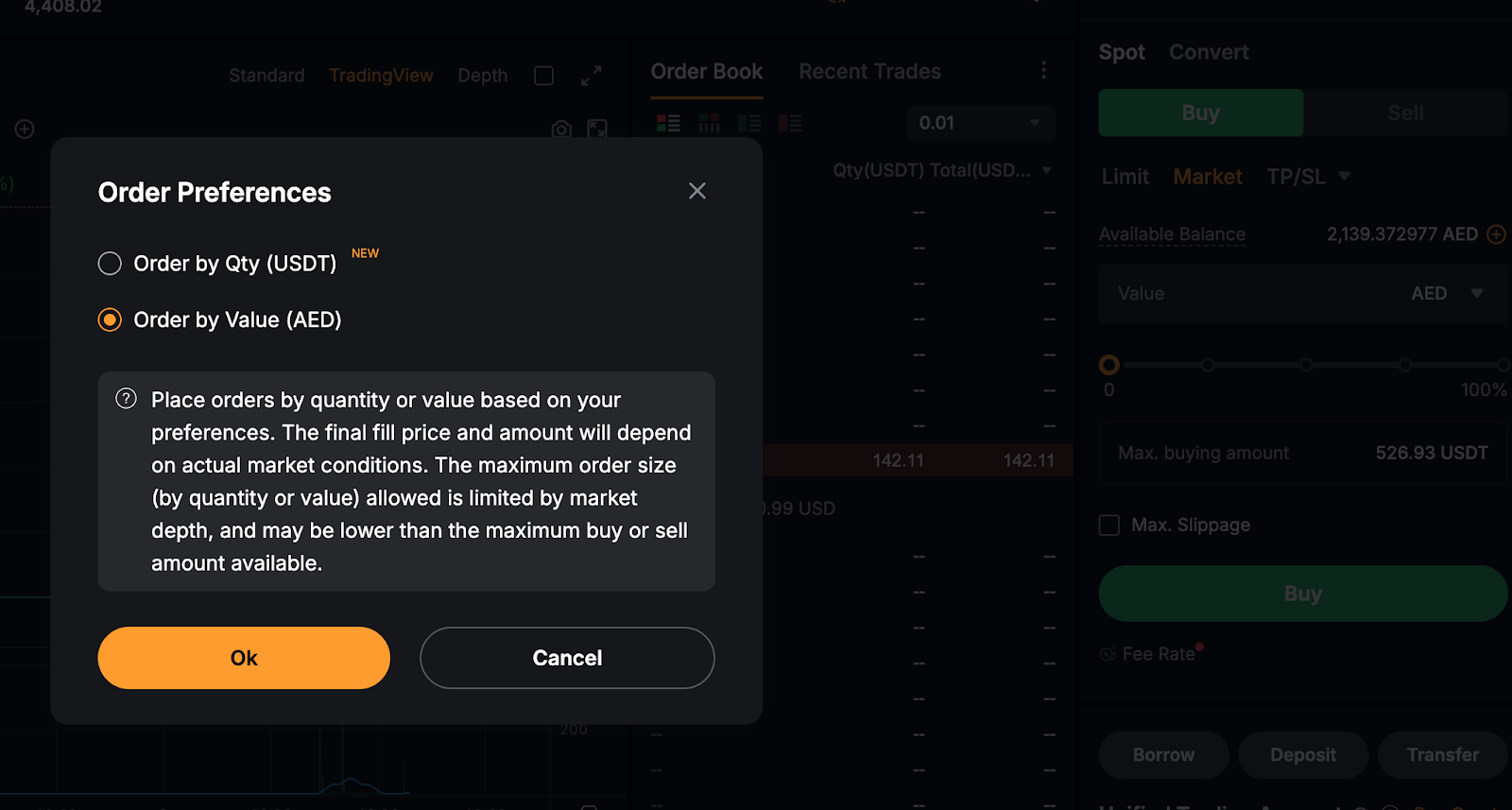
Step 3: Confirm your order
Review the details in the confirmation window, and click on Buy or Sell to place the order. Your order will successfully be submitted.
View your orders
Current orders
To monitor your active trades, navigate to the Orders tab to view all unfilled or untriggered orders. This section is vital for tracking limit and conditional orders that are waiting for market conditions to meet your specified criteria.
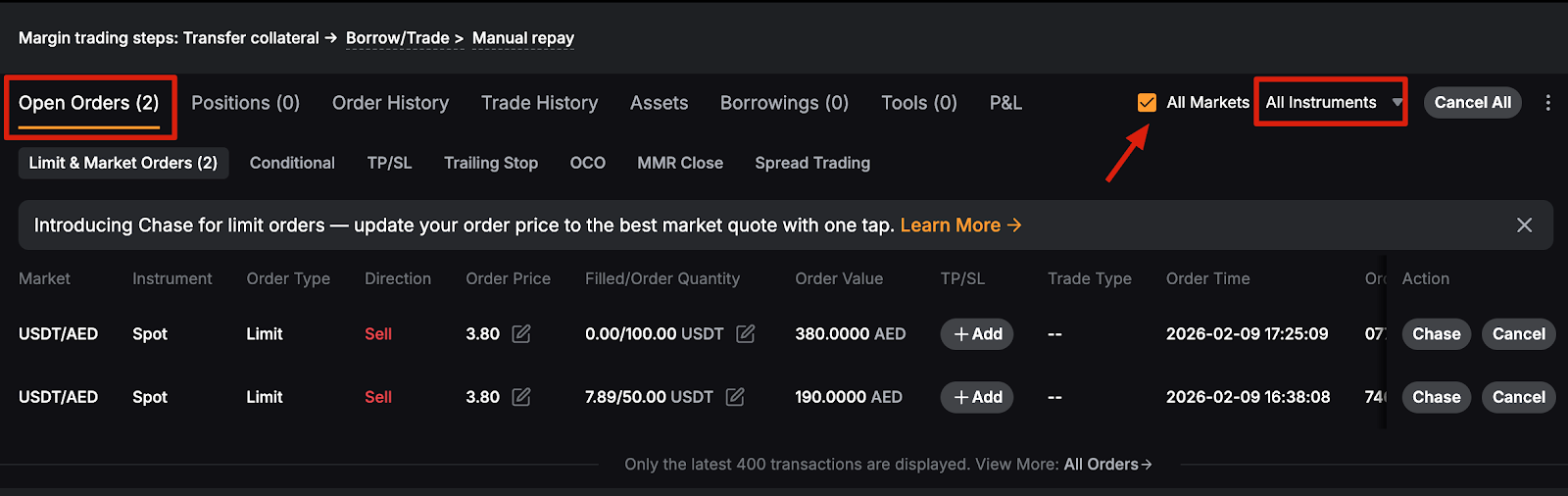
For a broader overview of your activity, check the All Markets box to see every open order across all trading instruments simultaneously.
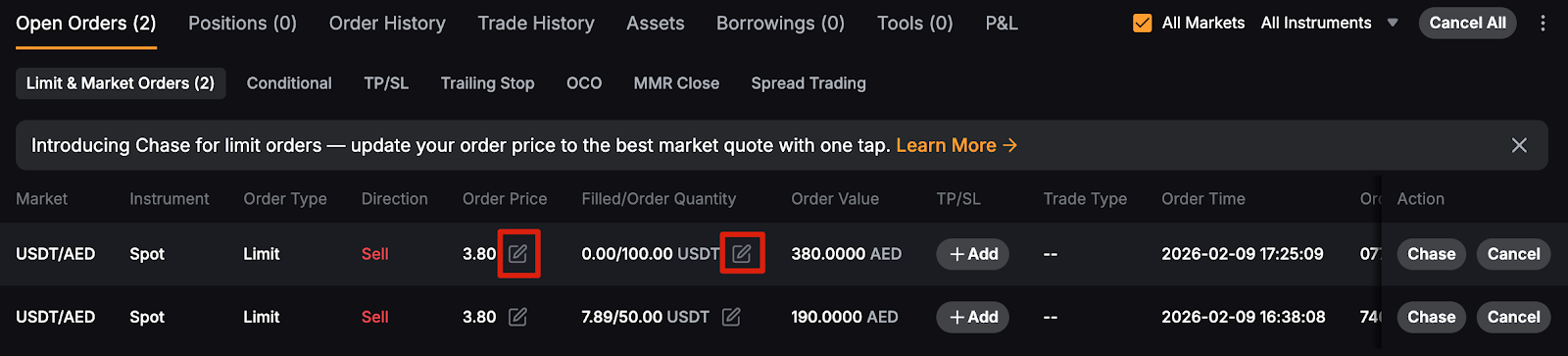
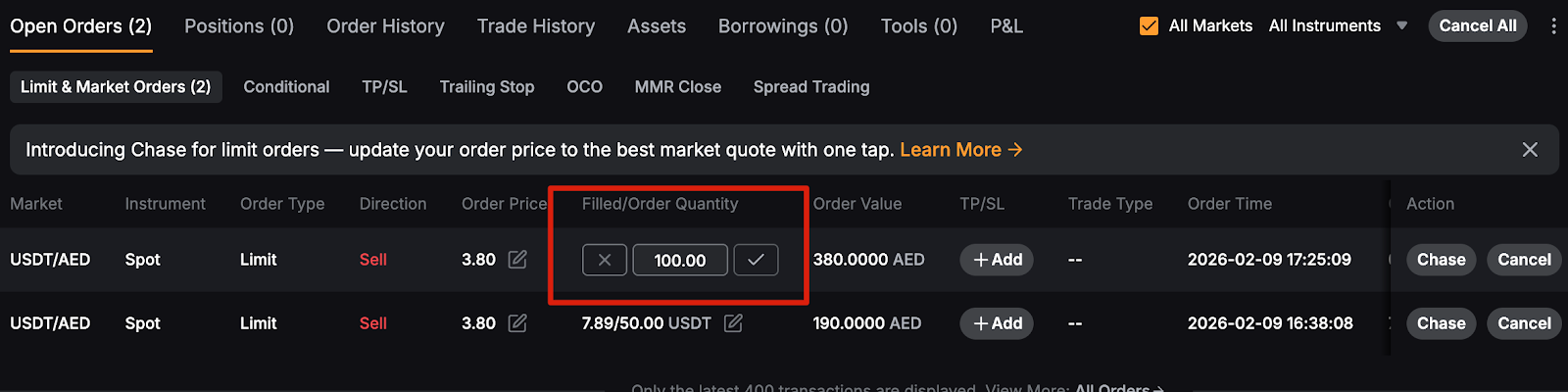
If you need to react to sudden market shifts, click on the pencil icon next to an order parameter to edit the price or quantity without having to cancel and recreate the entire position.
Order history and trade history
Understanding your past performance is key to refining your strategy. Switch to the Order History or Trade History tabs to access up to 50 records from the past six months.
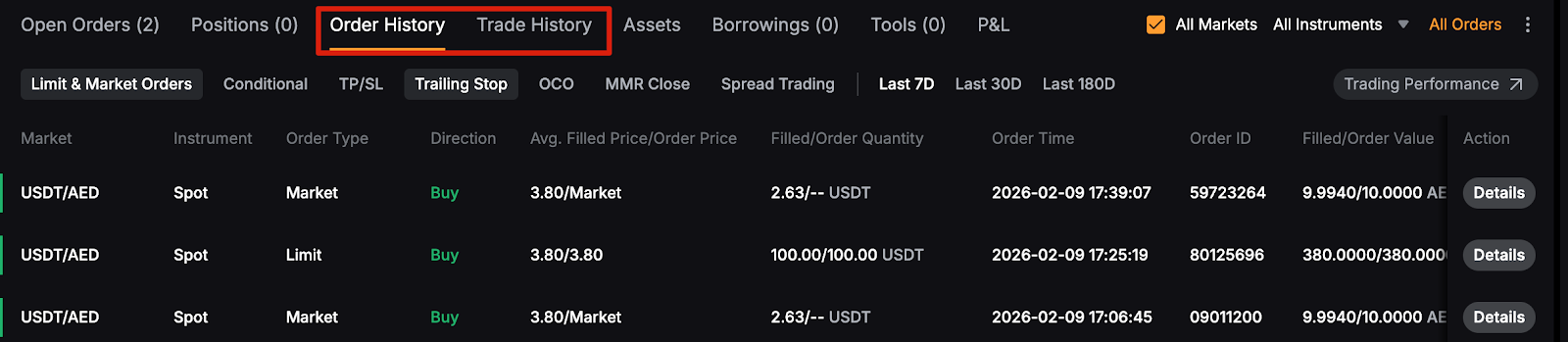
Similar to managing current orders, you can check Show all trading pairs to view your comprehensive activity across the entire platform.
Cancel your order
To cancel spot orders, go to Current Orders and click on Cancel next to the specific order. To cancel multiple orders, click on Cancel All in the upper-right corner.
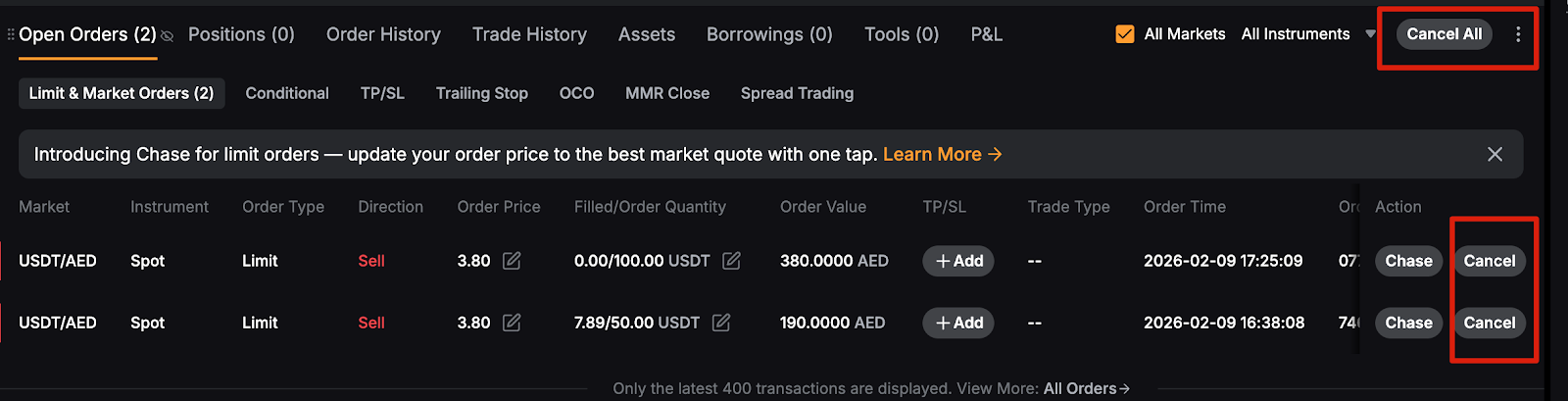
Important note: If Show all trading pairs is selected, clicking on Cancel All will cancel orders across all pairs.
Conclusion: A strategic approach to AED trading
Trading AED pairs on Bybit is designed to be a streamlined experience that empowers local investors. By mastering the interface and utilizing the robust order management tools available, you can focus on your strategy, rather than the mechanics of the platform.
Remember that every trade carries risk, especially in volatile markets. Always maintain strict security habits, such as avoiding public Wi-Fi for trading and regularly reviewing your order history, in order to ensure your portfolio remains aligned with your financial goals. #LearnWithBybit