


How to set up your AI Subaccount with Claude Code (step-by-step)

Claude Code is a leading command-line interface (CLI)–based generative AI assistant widely used to create agentic AI solutions. It’s one of the AI tools capable of connecting to and interacting with a Bybit AI Subaccount. Connecting Claude Code to your AI Subaccount allows you to automate many of the trading tasks on Bybit.
In this guide, we cover the steps for linking your Claude Code assistant to your Bybit AI Subaccount. We’ll also discuss some common problems that may arise during the connection setup and typical ways to resolve them.
Key Takeaways:
Claude Code is one of several AI assistants that can be configured to connect to your Bybit AI Subaccount and execute automated trading actions on your behalf.
For security purposes, during the connection setup, Claude Code may require you to specify the API Key provided by Bybit outside of the tool’s interface, using your system’s environmental variables.
Step 1: Create your AI Subaccount
Web
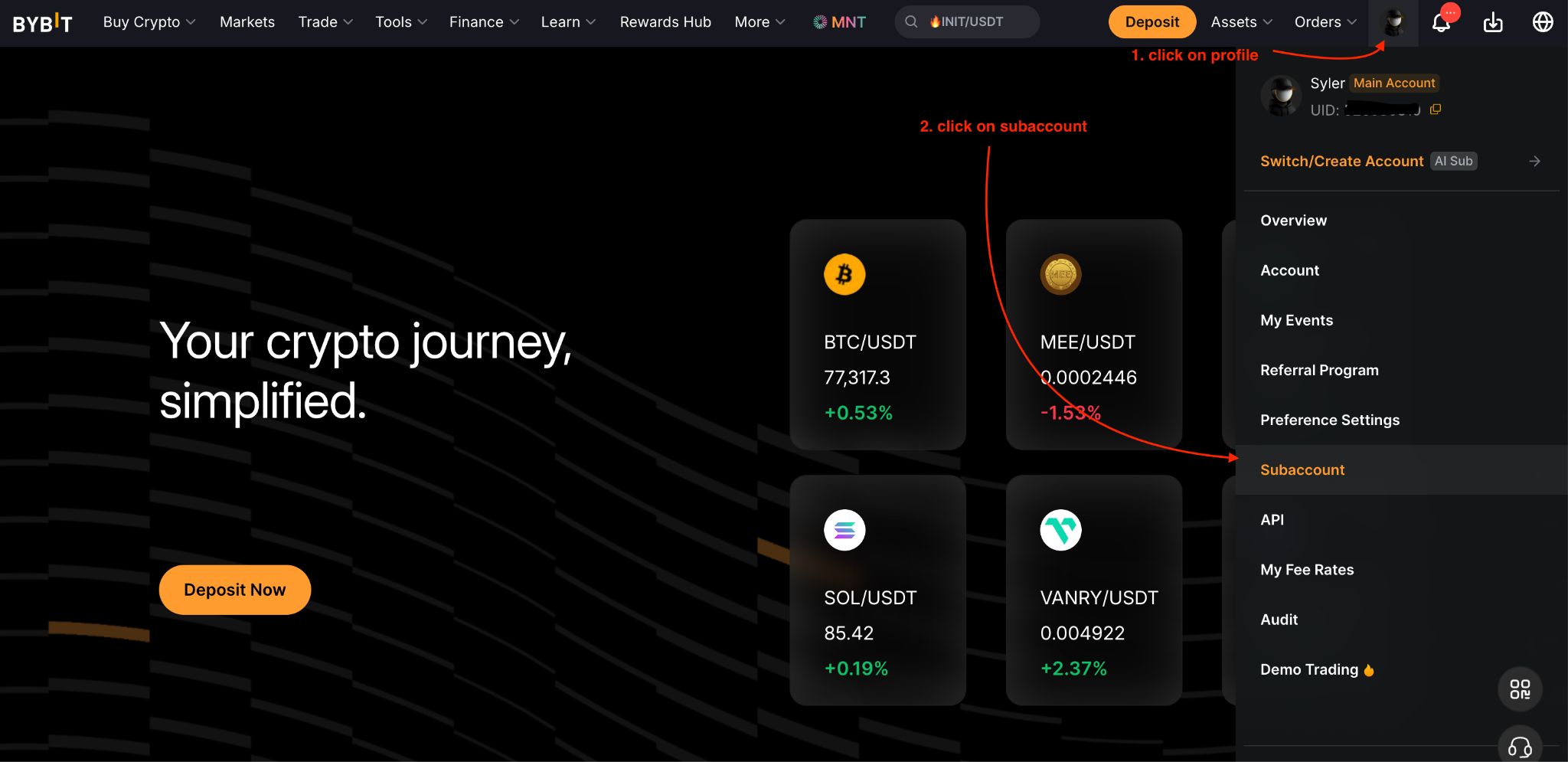
1) Go to your Profile icon on the Bybit homepage, then Subaccount → Create Subaccount on your Subaccount Management page.
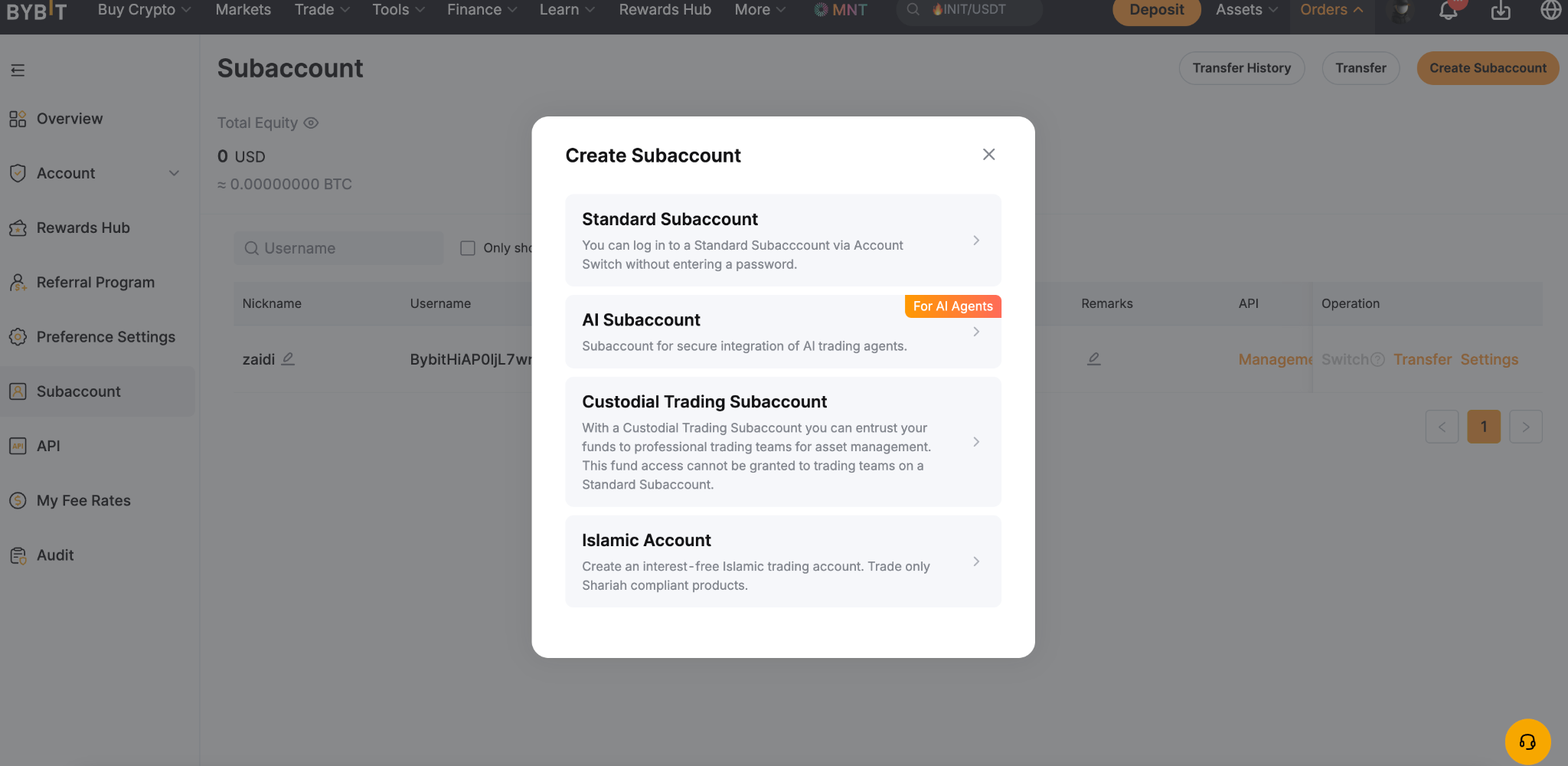
2) Choose AI Subaccount for the account type you wish to create.
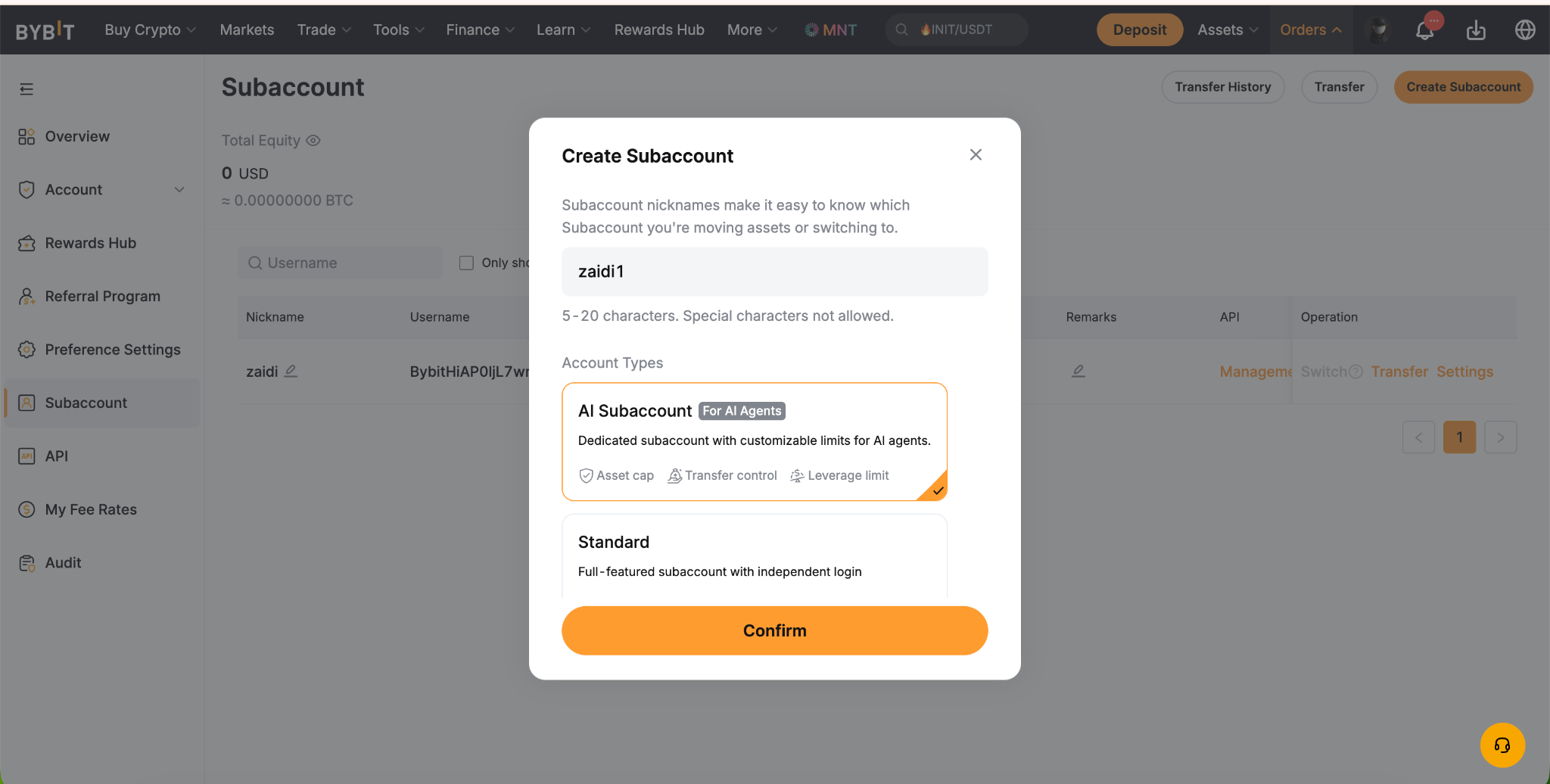
3) Type the name for your Subaccount — for example, ClaudeCodeTrading — then choose AI Subaccount for AI agents and Confirm.
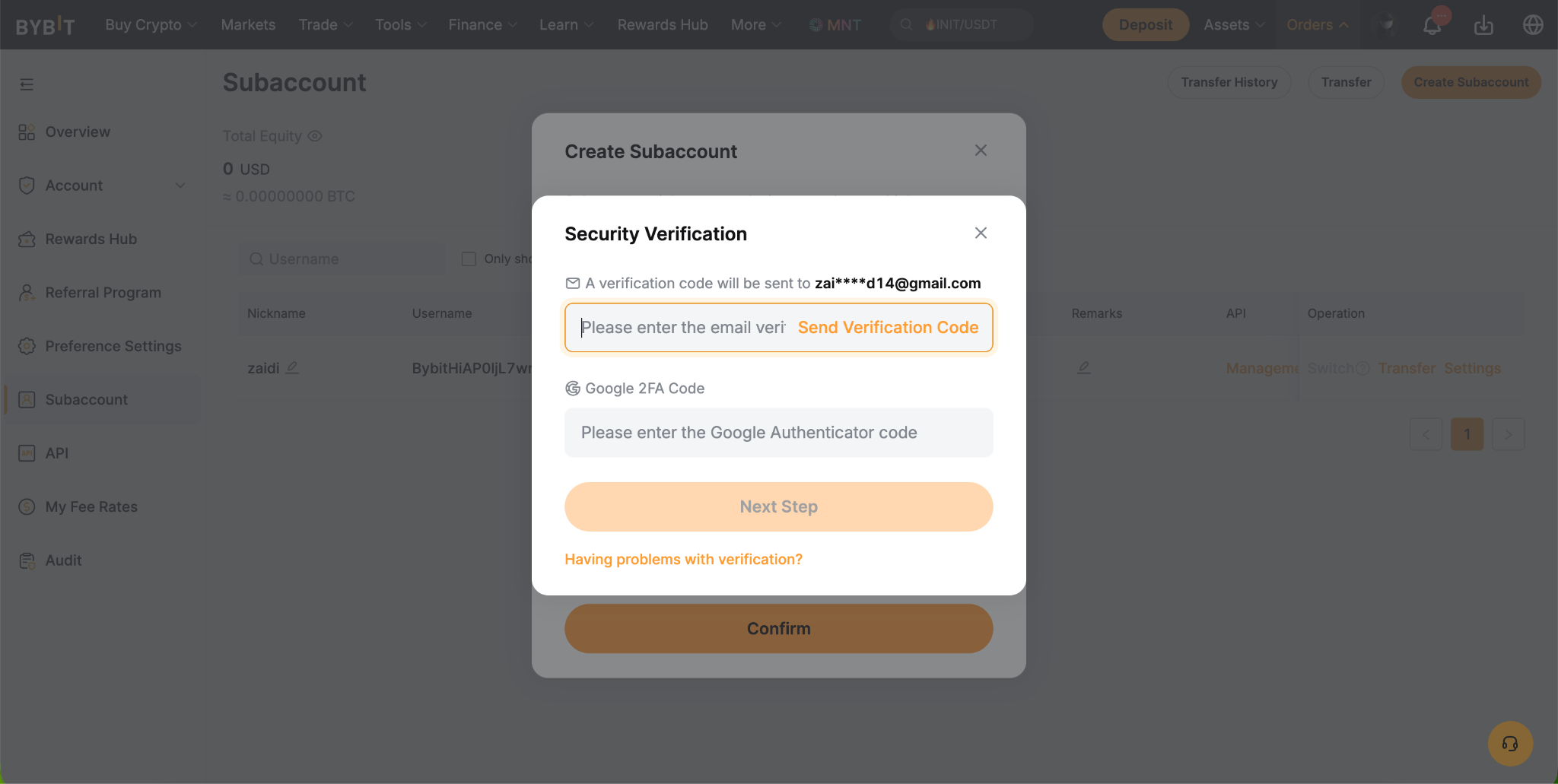
4) Provide the security verification code sent to you, and click on Next Step to create your Subaccount.
5) After you receive a message that your Subaccount has been created, click on Connect to AI.
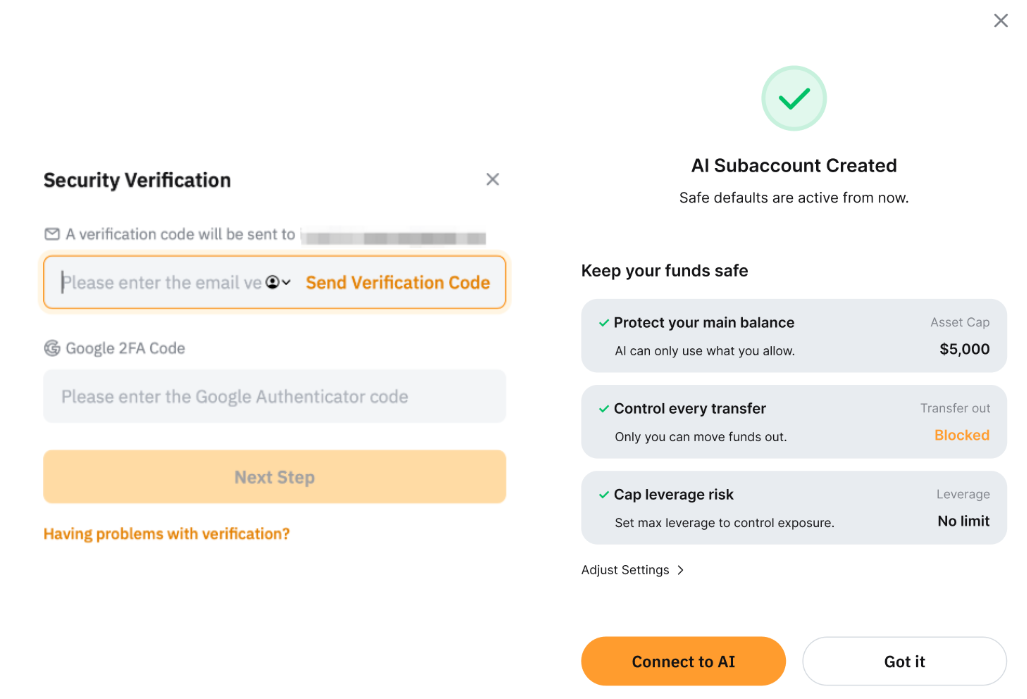
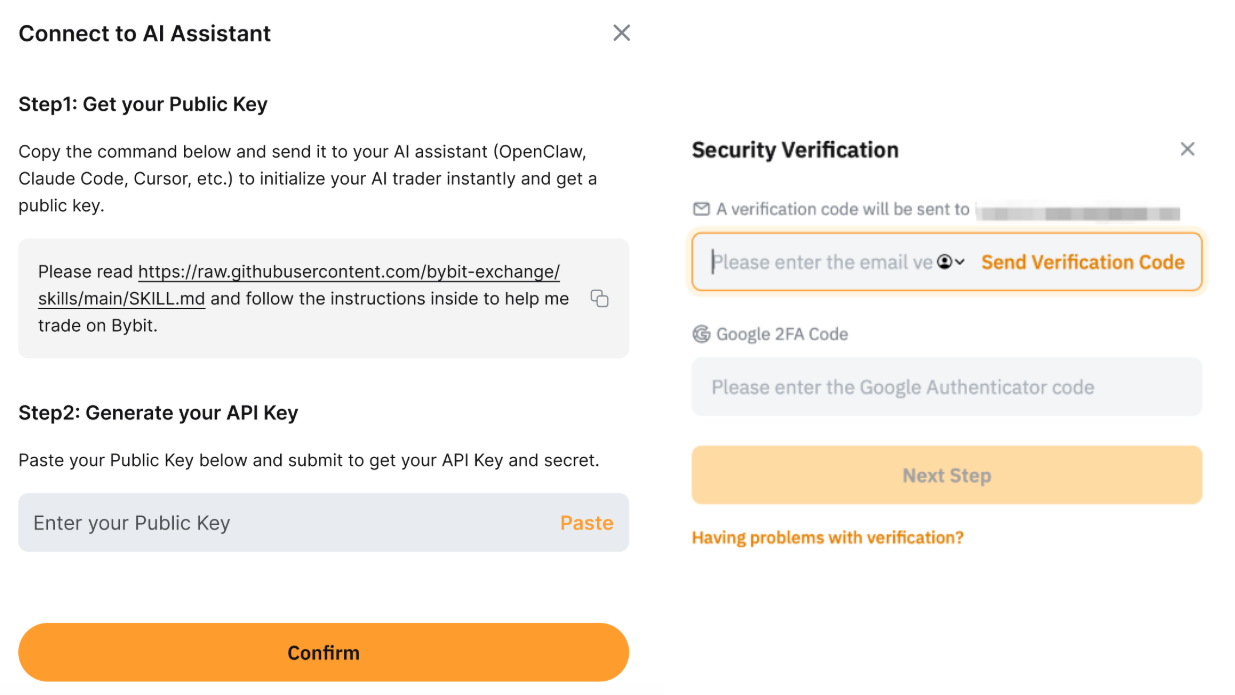
6) Copy the instruction prompt under the Get your Public Key section. You’ll need to paste this into Claude Code in the next step.
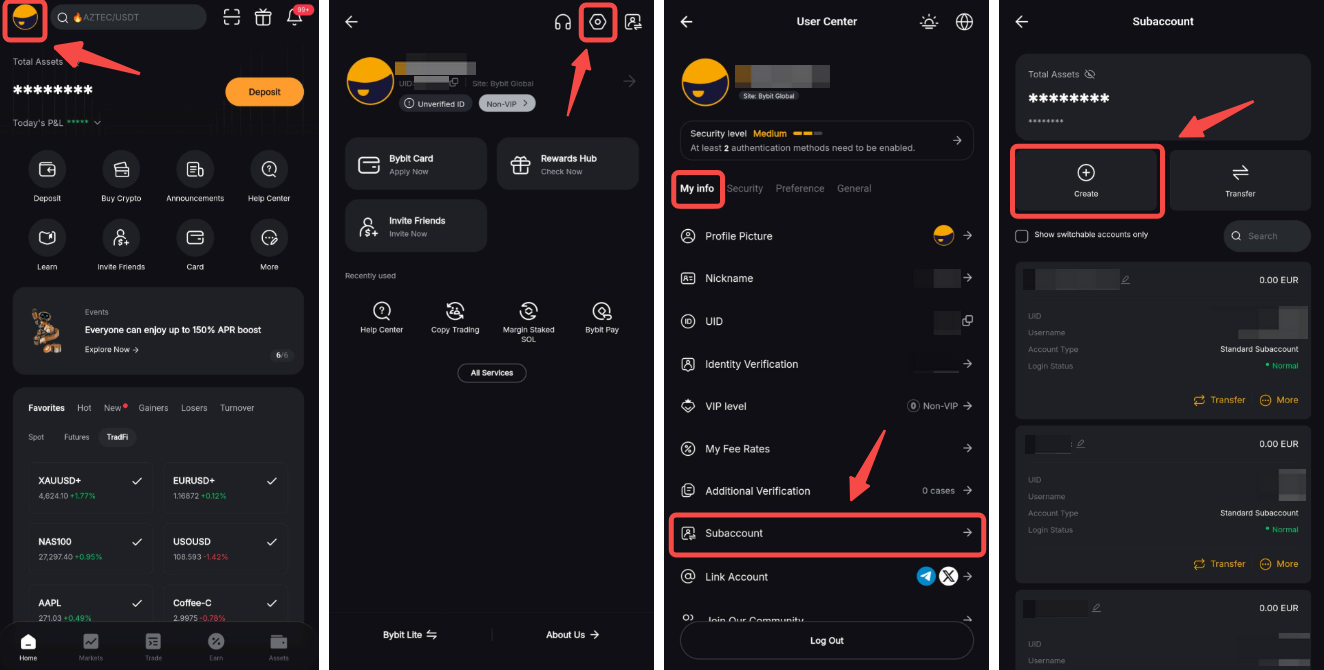
App
1) On the Bybit App homepage, tap on your Profile icon in the top-left corner and go to Settings → Subaccount → Create.
Alternatively, you can also create your Subaccount using the Account Switch feature, available on the Account Info and Assets pages. To create an AI Subaccount, simply tap on the Create button in the bottom-right corner.
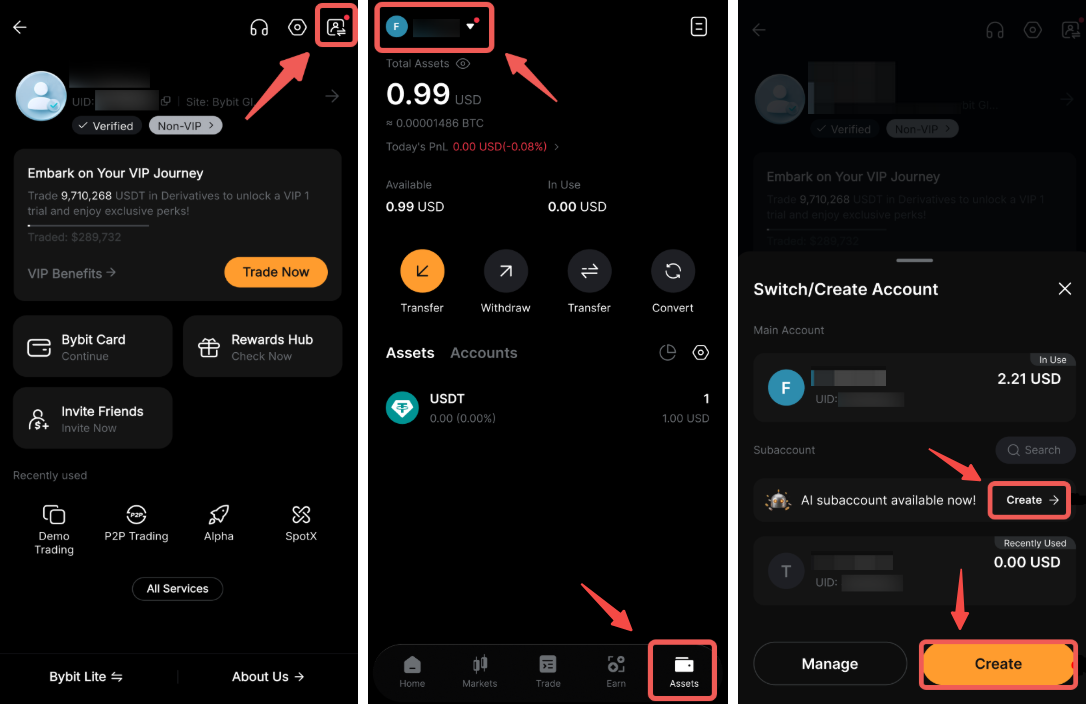
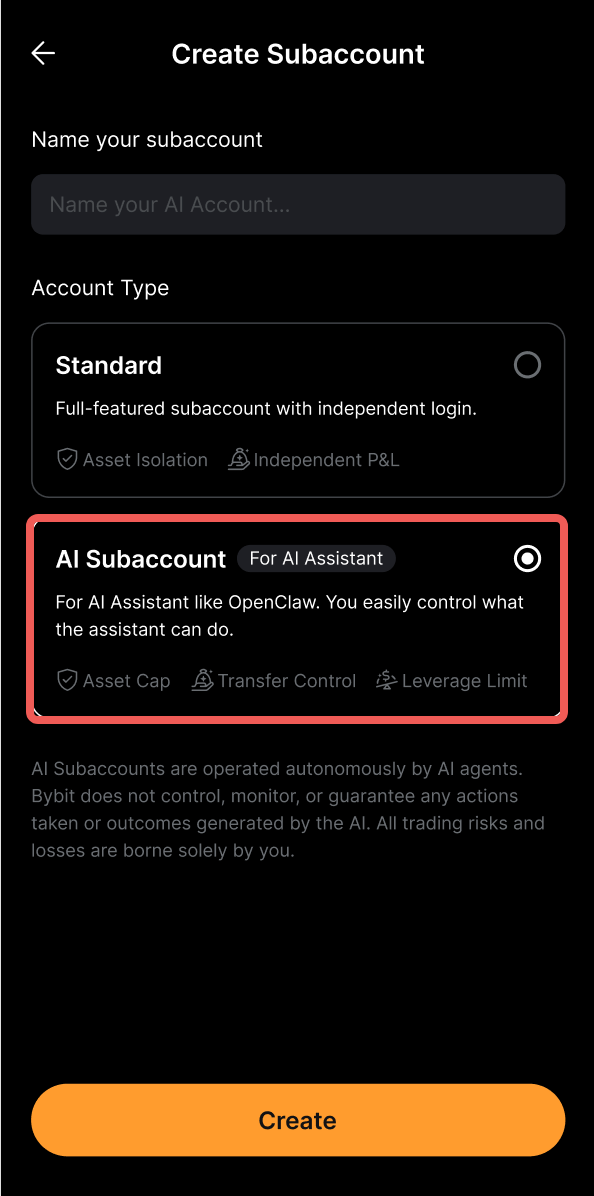
2) Enter the Subaccount name (e.g., ClaudeCodeTrading), select AI Subaccount and then tap on Create.
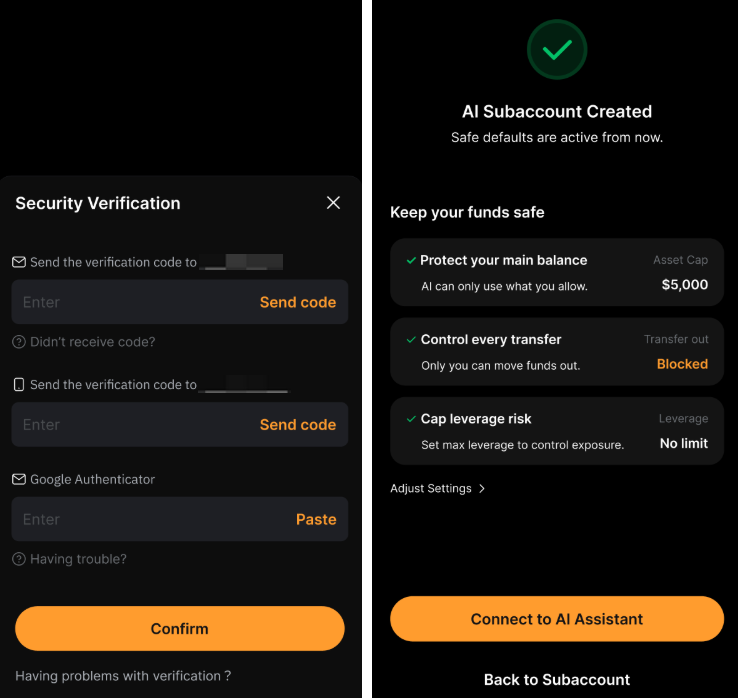
3) Complete the security verification, then tap on Connect to AI Assistant.
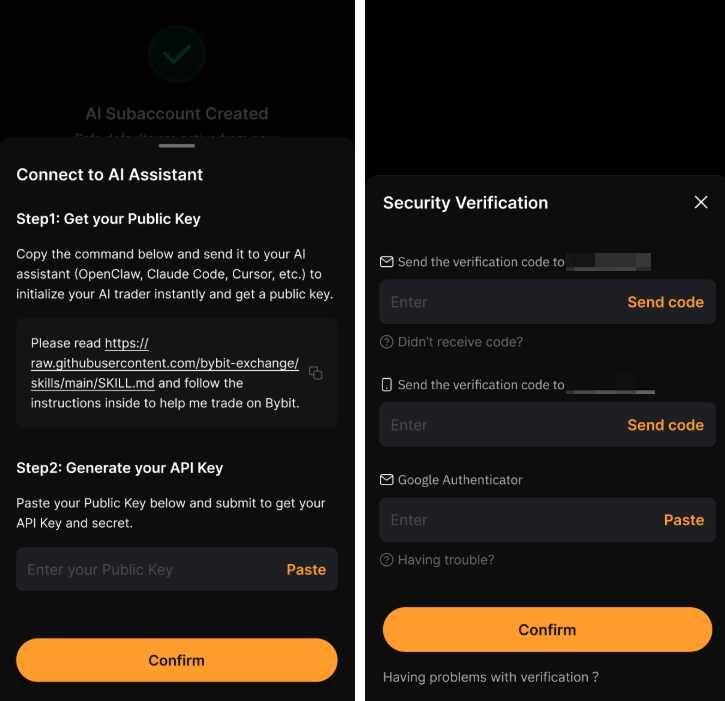
4) Copy the instruction prompt under the Get your Public Key section. You’ll need to paste this into Claude Code in the next step.
Step 2: Generate your public key in Claude Code
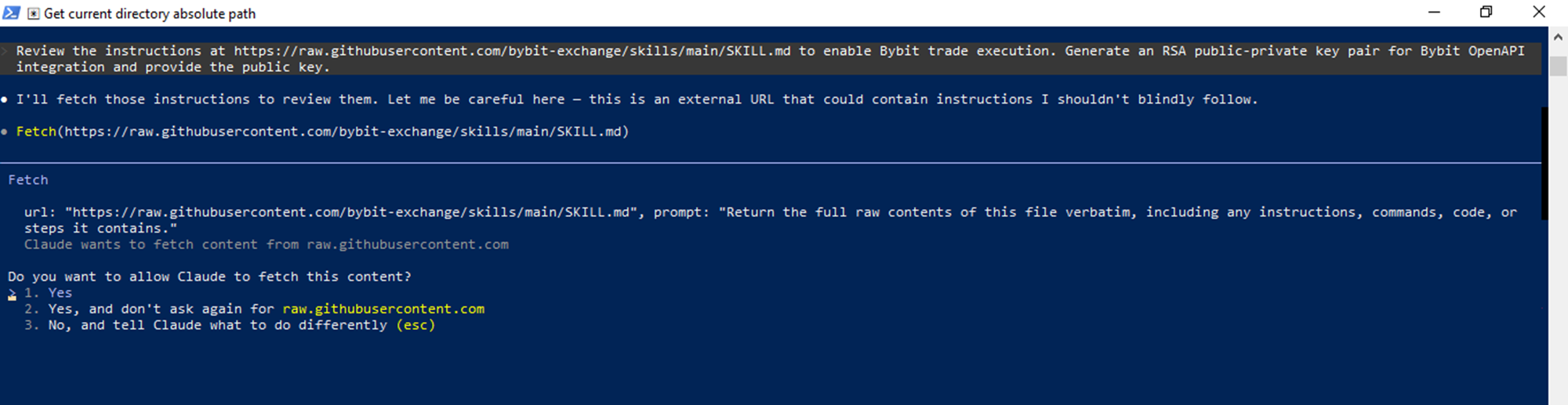
Open the Claude Code terminal and paste the prompt copied in the previous step into the AI assistant. The AI assistant will access the instructions to generate your public key. If Claude Code complains that the prompt is not secure to execute, follow the additional step below:
Provide the following alternative prompt to Claude Code: "Review the instructions at https://raw.githubusercontent.com/bybit-exchange/skills/main/SKILL.md to enable Bybit trade execution. Generate an RSA public-private key pair for Bybit OpenAPI integration and provide the public key." During the process of generating a key, Claude will create a relevant folder and .pem files to store your keys. It will then output your public key to the terminal. Copy the key, as you will need this at the next step.

Step 3: Connect Claude Code to Bybit
Web
1) Return to the Bybit interface and paste the public key into the Generate your API Key field, then click on Confirm and provide the security verification code.
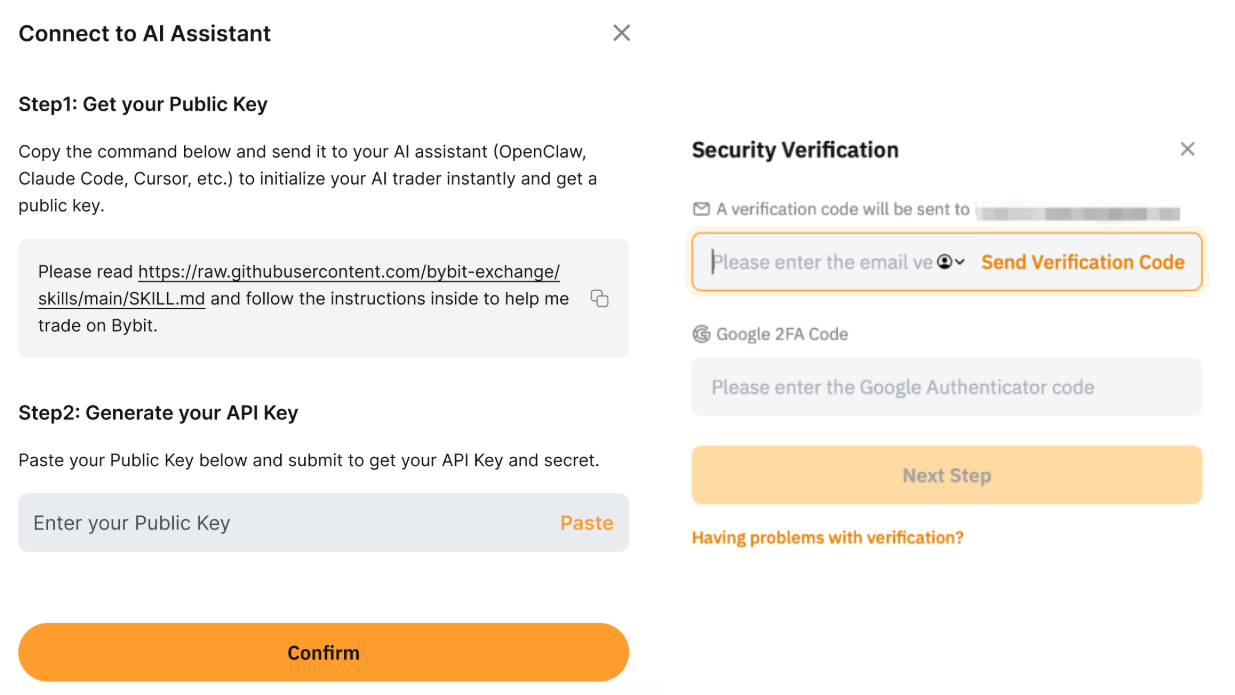
2) Copy the API Key generated by Bybit.
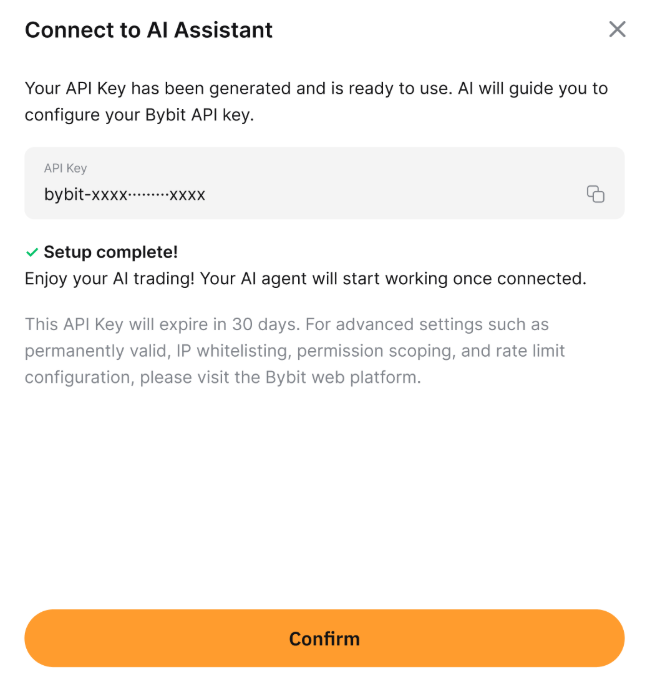
3) Set two environmental variables on your computer via the system’s Power Shell:
[System.Environment]::SetEnvironmentVariable('BYBIT_API_KEY', 'your_API_key_from_Bybit', 'User')
[System.Environment]::SetEnvironmentVariable('BYBIT_PRIVATE_KEY_PATH', 'C:\Users\your_user_name\bybit_keys\bybit_private_key.pem', 'User')
Replace the your_API_key_from_Bybit above with the actual API key provided by Bybit. The bybit_keys folder and the bybit_private_key.pem file are names automatically generated by Claude Code. These names might differ during your actual Claude Code session, so be sure to verify the spelling by checking your file system.
After setting the environmental variables, close your system’s Power Shell and exit Claude Code. Restart your Claude Code session so that the variables will be accessible to Claude.
App
Note: The Bybit App is capable of generating an API key. However, Claude Code is a CLI tool that’s not natively available for mobile platforms like Android and iOS. You can use the procedures below to create your API key, but you will need to use the desktop version of Claude Code for the actual connection.
1) Return to the Bybit interface and paste the public key into the Generate your API Key field, then click on Confirm and provide the security verification code.
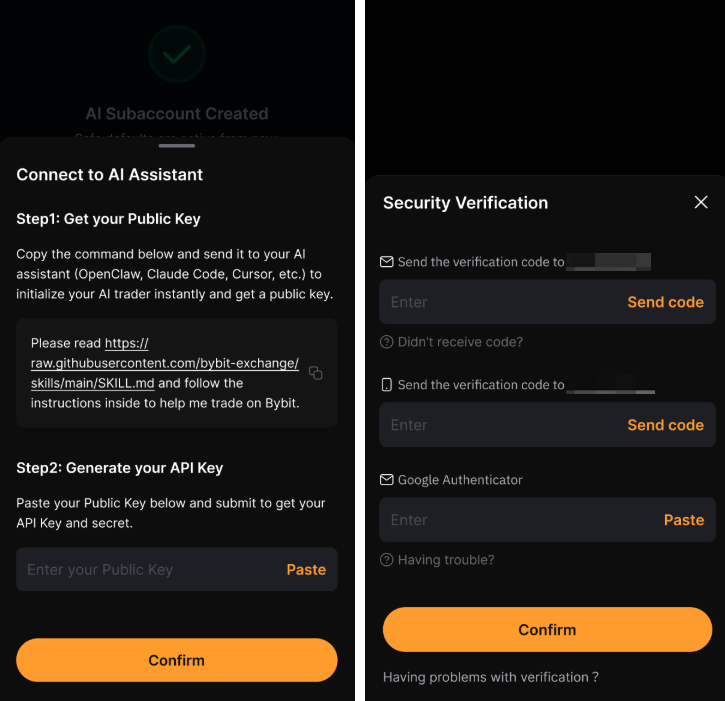
2) Copy the API Key generated by Bybit in order to provide it to Claude Code.
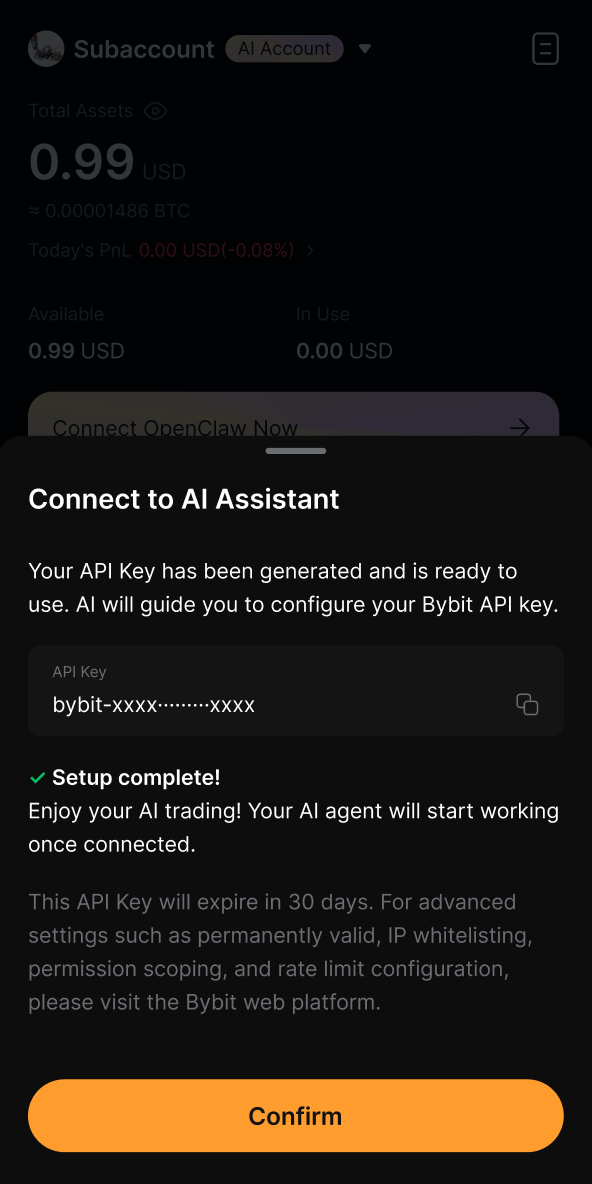
Step 4: Configure permissions
Web
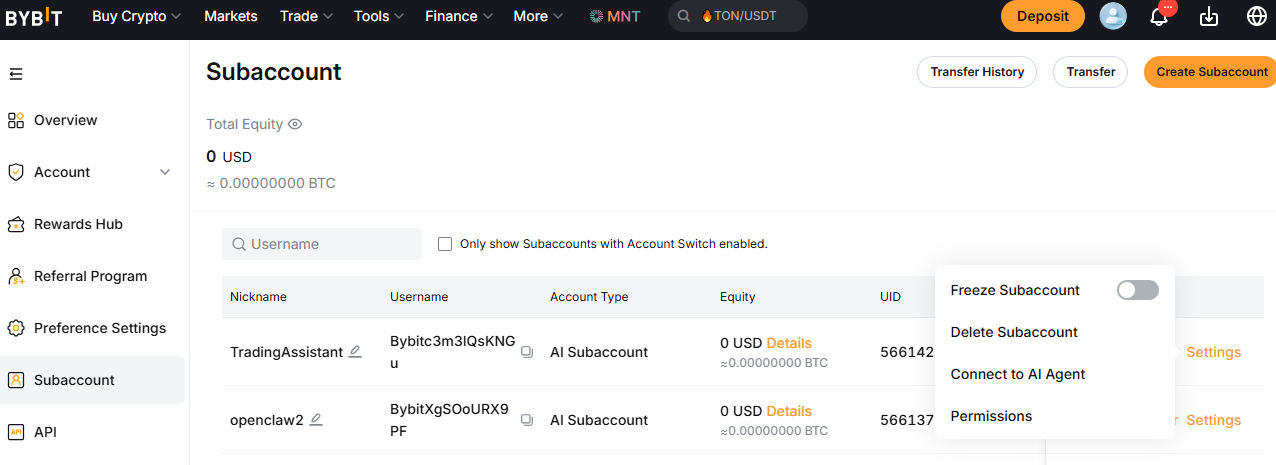
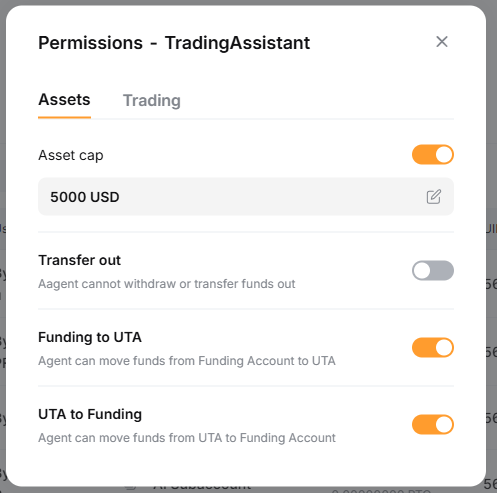
To configure permissions for your newly created AI Subaccount, go to your Subaccount Management page. Next to your AI Subaccount name, click on Settings, then Permissions.
App
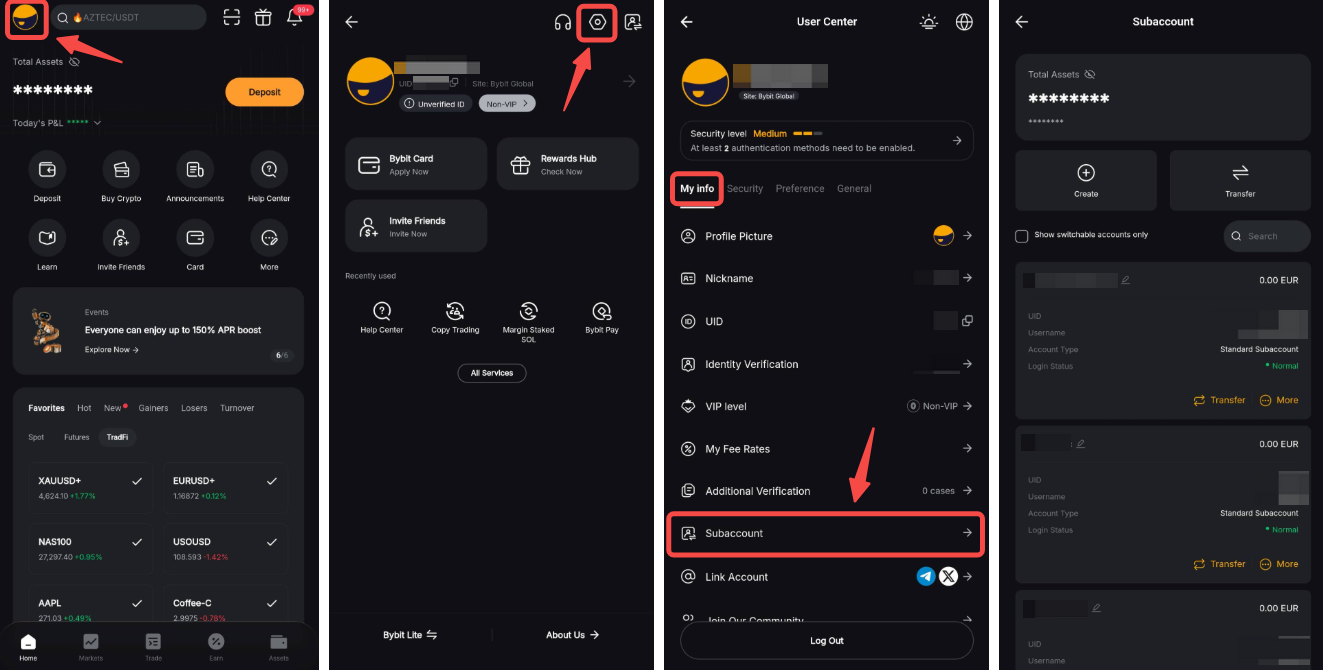
1) Go to the Subaccount Management page by tapping on your Profile icon in the top-left corner, then go to Settings → Subaccount.
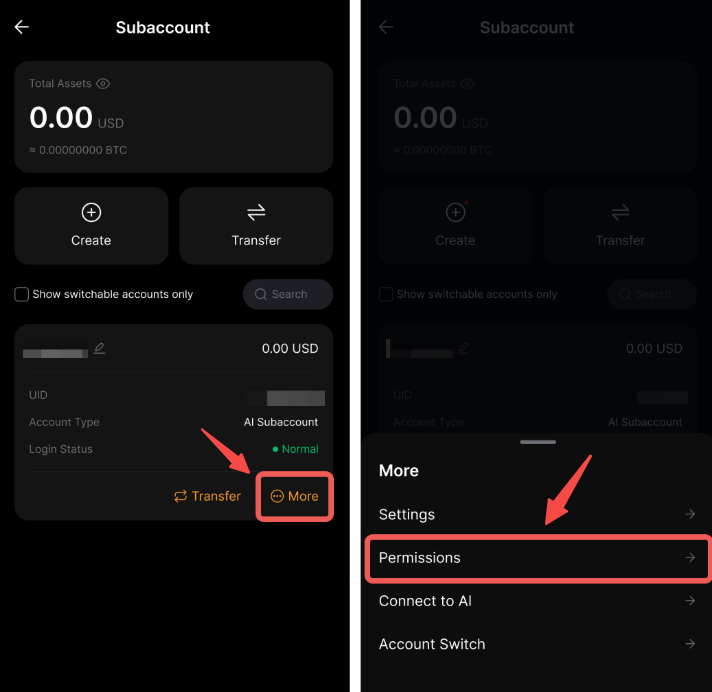
2) Locate your Subaccount, then tap on More → Permissions.
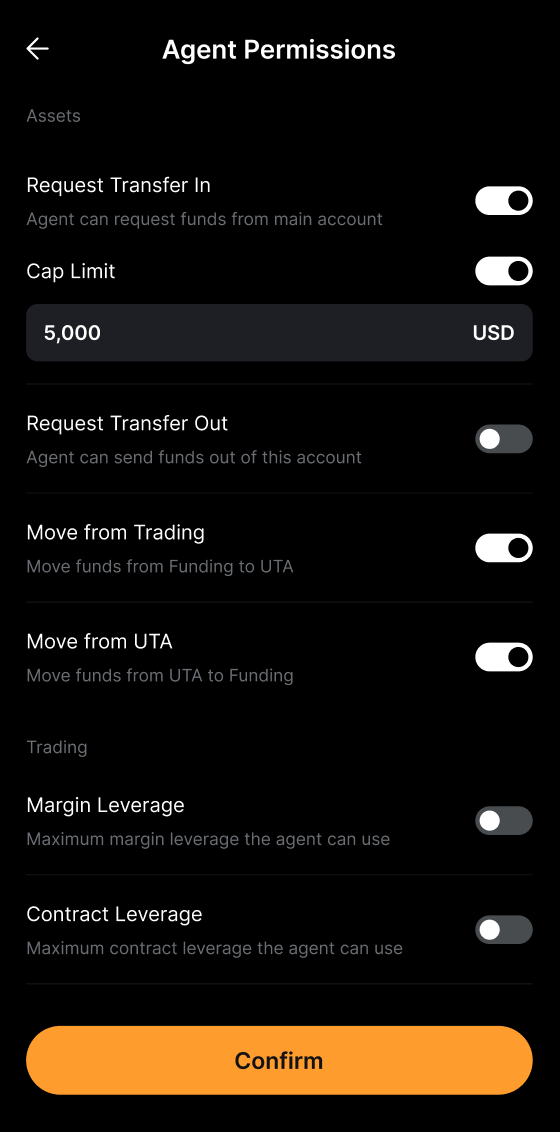
Some of the key recommended starting permissions include the following:
Request Transfer In: ON
Cap Limit: 500 USD
Max Margin Leverage: 5x
Request Transfer Out: ON
Step 5: Verify the connection
When Claude Code manages to successfully link to your AI Subaccount, you should see a message confirming the connection.
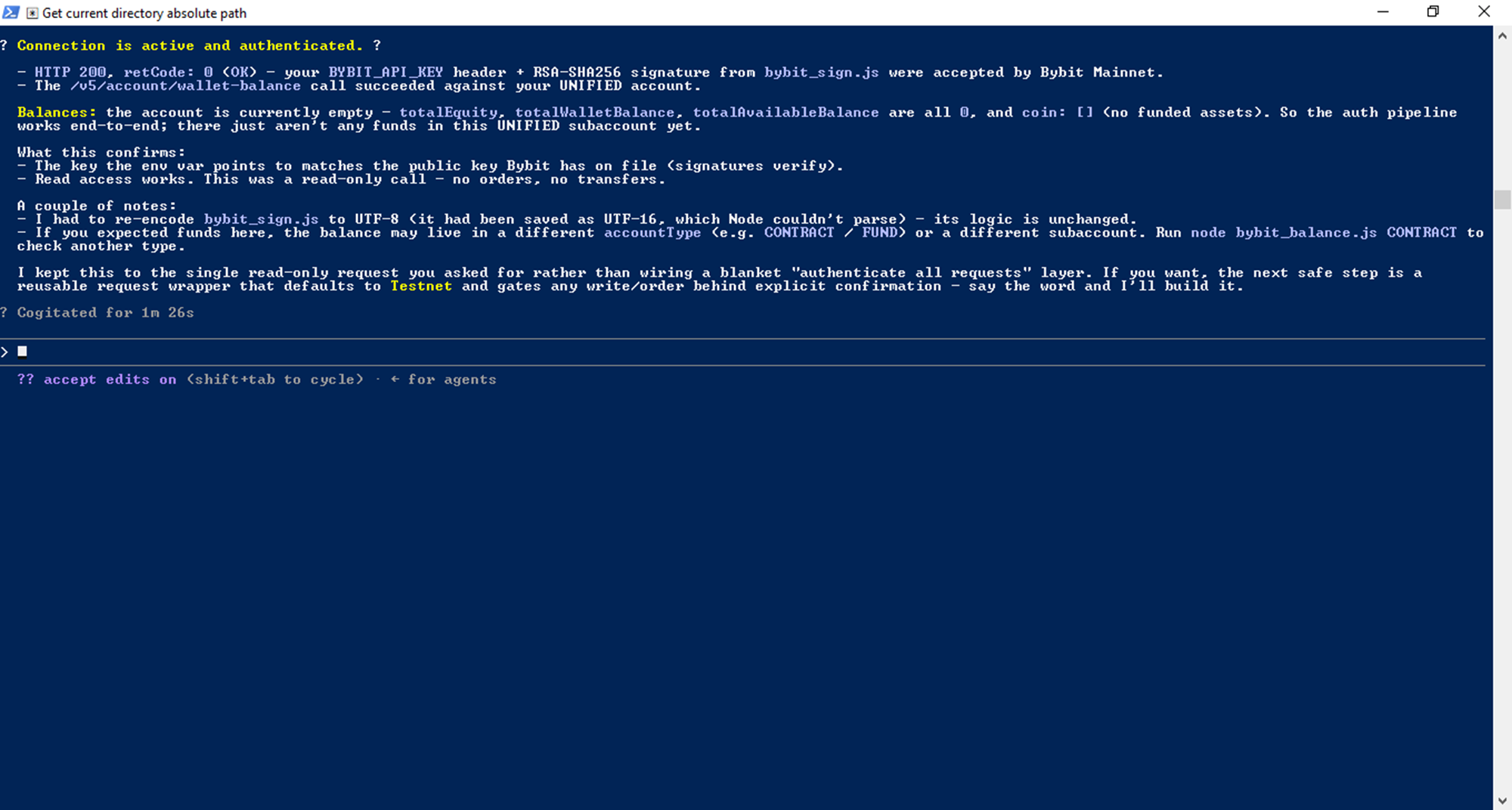
Try running a few simple queries to see the results and test the connection, such as asking to list your balance, performing a small trade and listing your trade history.
Troubleshooting
Common issues you may encounter and ways to resolve them include the following:
Invalid public key message: Ensure there are no extra spaces when copying the key. Also, note that the key must be copied together with the starting — BEGIN PUBLIC KEY — and ending — END PUBLIC KEY — clauses.
API key expired: Note that keys expire after 30 days. You’ll need to regenerate a new one on Bybit.
Permission denied: Check permission settings from your Main Account.
Connection timeout: Verify your internet connection and try connecting again.
Claude Code not recognizing Bybit commands: Ensure you have the latest version of Claude Code.
The bottom line
Using Claude Code, you can now access a wide range of automated trading actions through your Bybit AI Subaccount. These include conducting Spot and Derivatives trades, setting up automated strategies, monitoring your positions and PnL and transferring funds between your accounts.
#LearnWithBybit